> ## Documentation Index
> Fetch the complete documentation index at: https://docs.curator.interworks.com/llms.txt
> Use this file to discover all available pages before exploring further.
# Dashboard Feedback
> Enable user feedback collection on dashboards through Data Manager integration for improved user experience and insights.
In order to gather valuable insights from your audience about their experience using your Dashboards, Curator can
provide a simple and easy feedback mechanism for your users to submit their feedback, questions, and requests. After
following the [Creating a Form](/embedding_using_analytics/data_manager/creating_a_form)
outline to build out your desired form, follow the guide below to integrate the Dashboard feedback in to your Dashboard
pages.
## Modifying your for to support the Dashboard URL
In order to gather the context of which Dashboard a user is providing feedback for, you'll need to add a new hidden
field that will store the Dashboard URL (the Curator URL).
### Adding a new Data Attribute
To add this attribute to your form:
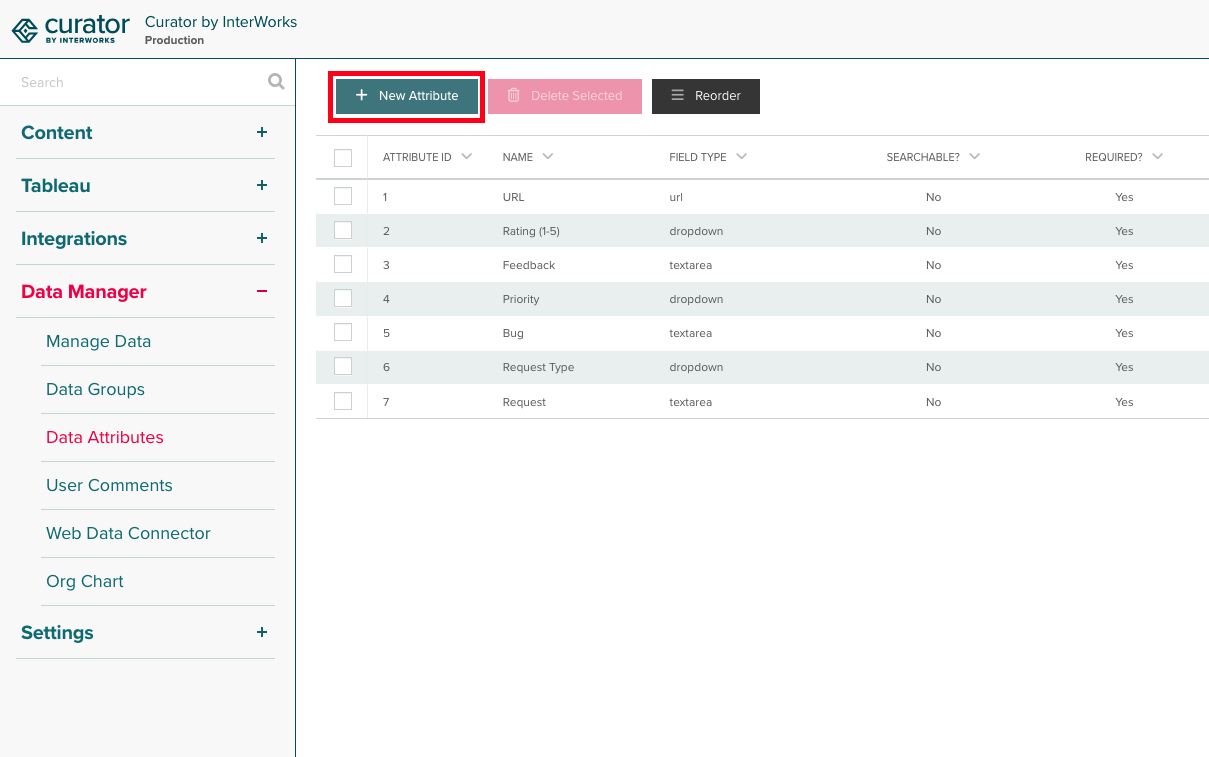
1. Go to Data Manager > Data Attributes to set up the fields you want:
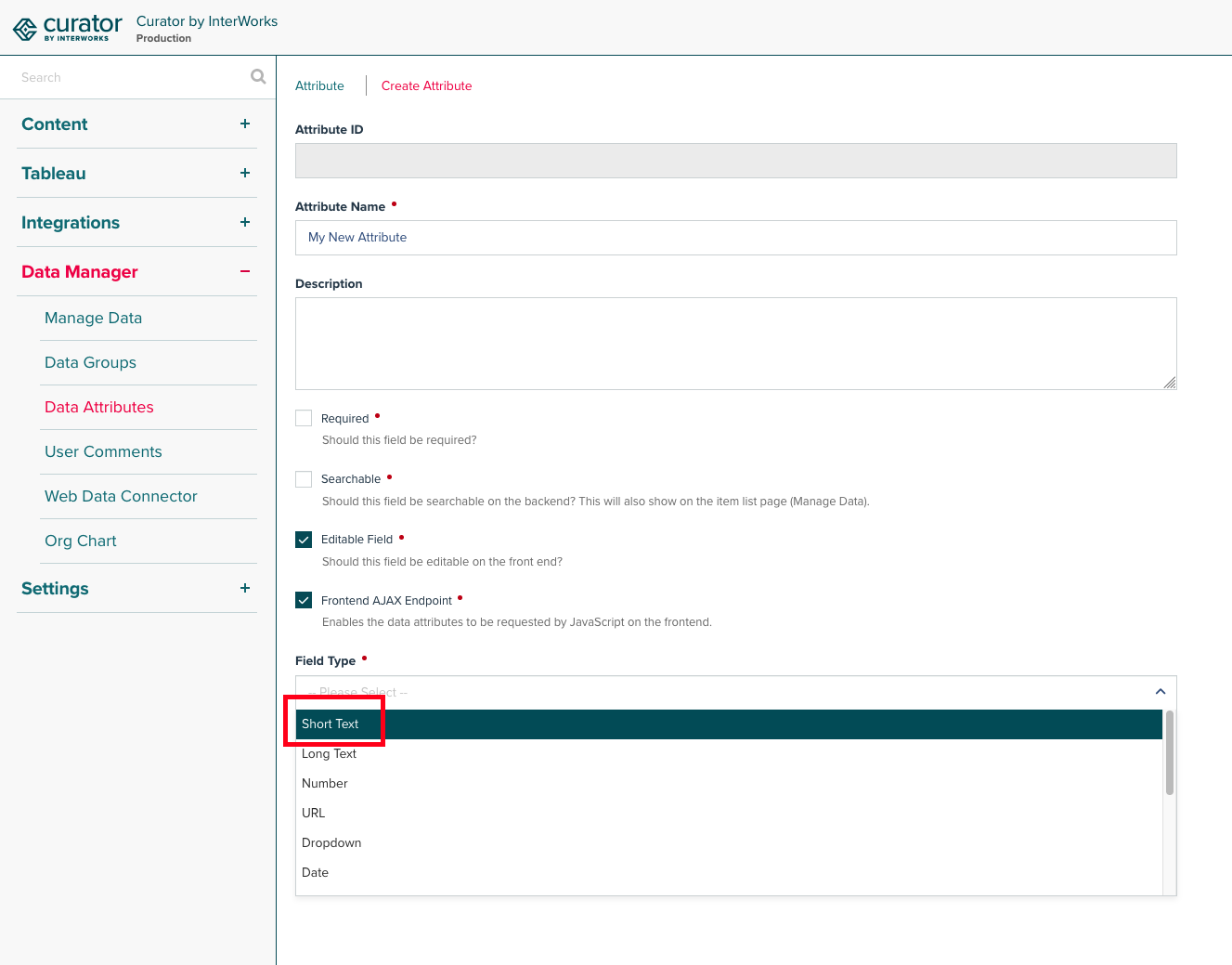
 2. In the Create Attribute page, set the name, description (optional), and the field type.
3. Make sure the field type is set to **Short Text**.
2. In the Create Attribute page, set the name, description (optional), and the field type.
3. Make sure the field type is set to **Short Text**.
 Next, navigate to your Data Manager Group, and associate the Attribute you just created with your Group.
### Identifying the form to use in Portal Settings
There's one last step to set up your Dashboard Feedback.
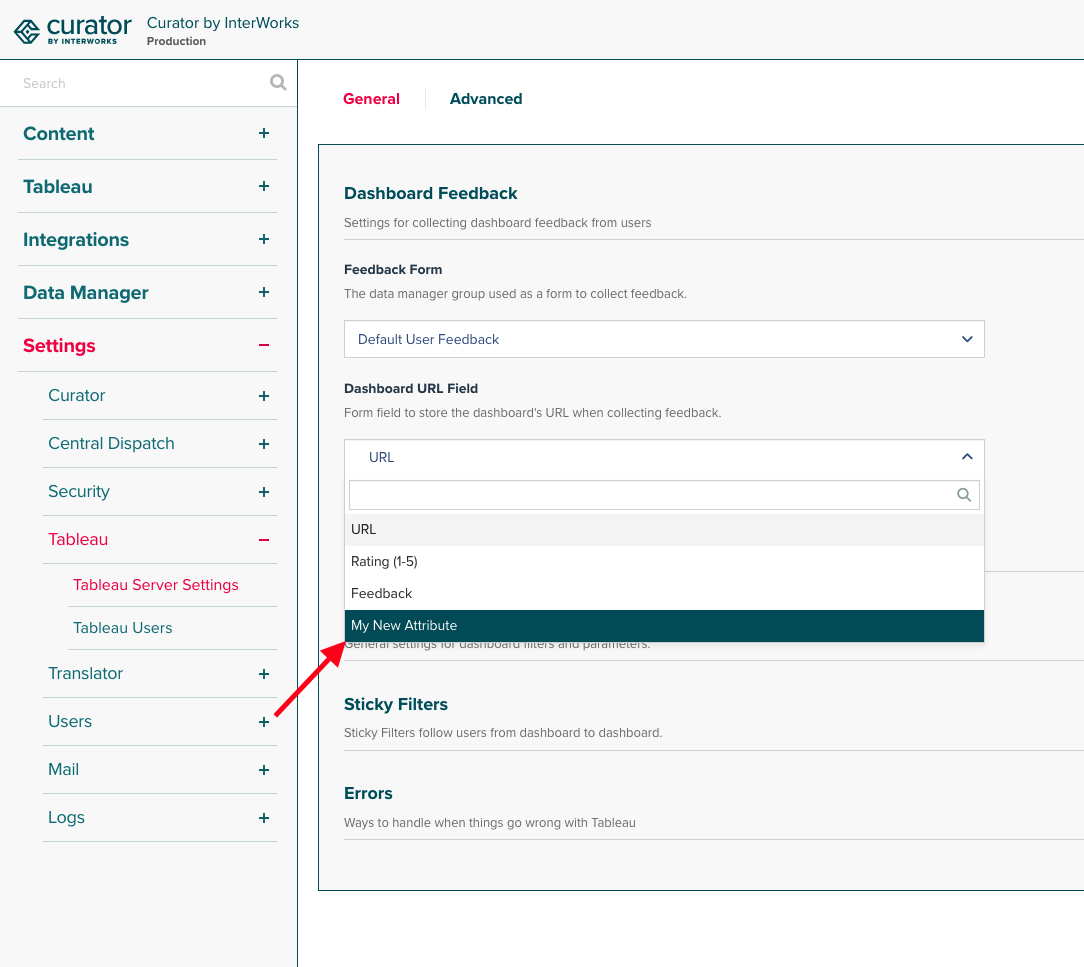
1. Navigate to Settings > Tableau > Tableau Server Settings.
2. Find the Dashboard Feedback on the General tab.
3. For the **Feedback Form** select your Data Group.
4. For the **Dashboard URL** select the Short Text Data Attribute you created to store the the Dashboard URL.
Next, navigate to your Data Manager Group, and associate the Attribute you just created with your Group.
### Identifying the form to use in Portal Settings
There's one last step to set up your Dashboard Feedback.
1. Navigate to Settings > Tableau > Tableau Server Settings.
2. Find the Dashboard Feedback on the General tab.
3. For the **Feedback Form** select your Data Group.
4. For the **Dashboard URL** select the Short Text Data Attribute you created to store the the Dashboard URL.