> ## Documentation Index
> Fetch the complete documentation index at: https://docs.curator.interworks.com/llms.txt
> Use this file to discover all available pages before exploring further.
# Chrome and Edge Embedding Issues (Local Network Access)
> Troubleshoot embedded content that fails to load in Chrome 142+ or Edge 143+ due to Local Network Access restrictions
This article applies to **all iframe-based embedded content** in Curator, including Tableau dashboards and Page Builder iframes.
While earlier versions of this guide focused on Tableau, Chrome's Local Network Access restrictions affect any content
loaded in an iframe.
If you're looking for a quick fix, see [Configuring Local Network Access](#configuring-local-network-access) for a
Portal Settings toggle that controls Curator's server-side mitigation.
## Overview
If you're running **Google Chrome 142** (or later) or **Microsoft Edge 143** (or later), you may find that embedded
content in Curator fails to load. Instead of seeing your Dashboard or embedded page, you might see a blank area where
the content should appear.
This happens because of a new security feature in Chromium browsers called **Local Network Access restrictions** (LNA).
This feature blocks public websites from connecting to devices or services on your local network. While Curator and your
analytics platforms use only public HTTPS endpoints, certain security tools on your computer can trigger this restriction
and break embedded content.
Curator provides a server-side mitigation (the `allow='local-network-access *'` attribute on embedded iframes), but it
cannot fully override the browser's security checks. Your IT team will need to configure browser policies for a
permanent fix.
**Chrome 152 removes the temporary opt-out policy.** The `LocalNetworkAccessRestrictionsTemporaryOptOut` enterprise
policy will be permanently removed in Chrome 152. If your organization currently relies on this policy as a workaround,
you must migrate to `LocalNetworkAccessAllowedForUrls` before Chrome 152 reaches your managed devices. See the
[Solutions for managed environments](#solutions-for-managed-environments) section for configuration details.
You can read more about this feature in [Chrome's developer blog](https://developer.chrome.com/blog/local-network-access)
and [Tableau's documentation](https://help.salesforce.com/s/articleView?id=005228129\&language=en_US\&type=1).
***
## Symptoms
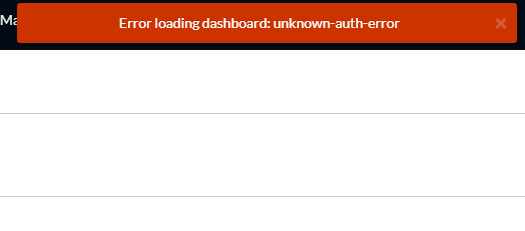 You'll know you're experiencing this issue if you see:
* You might see a **blank area, loading screen, or error message** where embedded content should appear.
* **Error messages** in the browser saying a public page tried to connect to devices on the local network.
* **Content loads in other browsers** - The same content works fine in Firefox, Safari, or older versions of Chrome/Edge.
* **Works on other devices** - The content loads normally on personal devices that aren't connected to your corporate network.
***
## Why this happens
### What is Local Network Access?
Chrome 142 ([release notes](https://developer.chrome.com/release-notes/142#local_network_access_restrictions)) and Edge 143
([release notes](https://learn.microsoft.com/en-us/microsoft-edge/web-platform/release-notes/143#local-network-access-from-non-secure-contexts))
introduced Local Network Access (LNA) restrictions to protect users from malicious websites trying to access devices
on their local network.
When a public website tries to connect to these addresses, the browser will block or prompt:
* **Loopback addresses:** `127.0.0.1`, `localhost`
* **Private IP ranges:** `10.x.x.x`, `172.16-31.x.x`, `192.168.x.x`
* **Carrier-grade NAT ranges:** `100.64.0.0` to `100.127.255.255` (commonly used by security products)
### Why does this affect Curator?
In most cases, Curator and your analytics platforms use only public HTTPS endpoints, so LNA shouldn't be triggered.
However, in corporate environments with certain security tools installed, those tools may create connections to local
addresses while you're using Curator.
Common security tools that can trigger this issue:
* **[Zscaler Client Connector or ZPA](https://trust.zscaler.com/posts/26216)** - Uses IP range `100.64.0.0` and higher
for internal routing
* **[Duo Desktop](https://help.duo.com/s/article/9470)** - Runs a local helper service
* **[Okta FastPass](https://support.okta.com/help/s/article/configure-chrome-to-suppress-the-local-network-access-prompt-for-okta-fastpass)**
\- Uses local authentication components
* **[Box Tools](https://support.box.com/hc/en-us/articles/45163820905107)** - Connects to local services
* **Other DLP or endpoint security agents** - May expose local HTTP services
When one of these tools is running, your browser sees this as "public site (Curator) accessing local network" and
applies LNA restrictions. If this happens while loading content in an iframe, you often won't see a prompt—the
embedded content will simply fail to load.
***
## Who is affected
You'll see this issue if:
1. You're using **Google Chrome 142** (or later) or **Microsoft Edge 143** (or later)
2. Your organization uses security tools like those listed above that rely on local addresses or carrier-grade NAT ranges
3. You're accessing Curator on a managed corporate device
If you're using Firefox, Safari, or older versions of Chrome/Edge, you typically won't see this issue.
***
## Quick troubleshooting for end users
If embedded content isn't loading in Curator, try these quick checks:
1. **Test in another browser** - Try Firefox or Safari to see if the content loads normally. If it does, this confirms
an LNA issue.
2. **Check your browser version**
* In Chrome: Go to `chrome://settings/help`
* In Edge: Go to `edge://settings/help`
* If you see version 142+ (Chrome) or 143+ (Edge), LNA may be the cause
3. **Test on a different device** - Try accessing Curator from a personal device or home network. If it works there,
the issue is related to your corporate security tools.
4. **Contact your IT team** - Share this article with them. They'll need to configure browser policies to fix the
issue permanently.
***
## Diagnostic steps for IT teams
If users are reporting blank or failed embeds, follow these steps to confirm this is an LNA issue:
### Step 1: Confirm the environment
Check that:
* Users are on Chrome 142+ or Edge 143+
* Affected devices are managed corporate machines
* Users have security tools installed (Zscaler, Duo Desktop, Okta FastPass, Box Tools, or similar)
### Step 2: Inspect the browser console
On an affected computer:
1. Open Curator and navigate to a page with embedded content that's failing to load.
2. Open **Developer Tools** in the browser:
* Chrome: Press `F12` or `Ctrl+Shift+I` (Windows) / `Cmd+Option+I` (Mac)
* Edge: Press `F12` or `Ctrl+Shift+I` (Windows) / `Cmd+Option+I` (Mac)
3. Click the **Network** tab in Developer Tools.
4. Reload the page and look for failed requests:
* Look for error messages mentioning **Local Network Access**
* Check for remote addresses in these ranges:
* `127.0.0.1` or `localhost`
* `10.x.x.x`, `172.16-31.x.x`, `192.168.x.x`
* `100.64.0.0` to `100.127.255.255` (used by Zscaler and others)
5. For failed requests, check the **Initiator** or **Origin** column to see which site initiated the request.
### Step 3: Capture diagnostic information
Take screenshots or note:
* The full URL of any failing requests
* The remote IP address and port
* Which security tool is involved (based on the URL/IP)
* The browser version
This information will help you determine which domains to allowlist in browser policies.
***
## Solutions for managed environments
For corporate-managed Chrome and Edge browsers, your IT team needs to configure Local Network Access policies to
allowlist trusted domains.
### For Google Chrome
Your IT team should configure Chrome enterprise policies ([full policy list](https://chromeenterprise.google/policies))
using your management platform (Group Policy, Jamf, Intune, etc.).
**Key policies** ([atomic group documentation](https://chromeenterprise.google/policies/atomic-groups)):
* `LocalNetworkAccessAllowedForUrls` - List of domains allowed to make local network requests without prompting
* `LocalNetworkAccessBlockedForUrls` - List of domains blocked from local network access
* `LocalNetworkAccessRestrictionsTemporaryOptOut` - Temporary opt-out (reverts to pre-142 behavior)
#### Example configuration
In JSON format for Chrome policy:
```json theme={null}
{
"LocalNetworkAccessAllowedForUrls": {
"Value": [
"https://your-curator-domain.com",
"https://your-tableau-server.com"
]
}
}
```
Replace the example domains with:
* Your Curator portal URL(s)
* Your Tableau Server or Tableau Cloud URL(s)
* Any identity provider domains if you use SSO
**To verify the policy is working:**
1. On a managed computer, open Chrome and navigate to `chrome://policy`
2. Search for "LocalNetworkAccess" in the policy list
3. Verify that your `LocalNetworkAccessAllowedForUrls` policy appears with the correct domains
**Temporary workaround:**
The `LocalNetworkAccessRestrictionsTemporaryOptOut` policy will be permanently removed in **Chrome 152**. If you are
currently using this workaround, migrate to `LocalNetworkAccessAllowedForUrls` before Chrome 152 reaches your managed
devices.
If you need time to configure policies properly, you can temporarily enable `LocalNetworkAccessRestrictionsTemporaryOptOut`
to restore the old behavior. This is only a short-term solution and will stop working once Chrome 152 is deployed.
### For Microsoft Edge
Edge has equivalent policies
([policy documentation](https://learn.microsoft.com/en-us/deployedge/microsoft-edge-policies)) that work the same way.
**Key policies:**
* [`LocalNetworkAccessRestrictionsEnabled`](https://learn.microsoft.com/en-us/deployedge/microsoft-edge-browser-policies/localnetworkaccessrestrictionsenabled)
\- Enable or disable the restriction
* [`LocalNetworkAccessAllowedForUrls`](https://learn.microsoft.com/en-us/deployedge/microsoft-edge-browser-policies/localnetworkaccessallowedforurls)
\- Allowlist specific domains
* [`LocalNetworkAccessRestrictionsTemporaryOptOut`](https://learn.microsoft.com/en-us/deployedge/microsoft-edge-browser-policies/localnetworkaccessrestrictionstemporaryoptout)
\- Temporary opt-out
#### Example Edge configuration
In Group Policy:
1. Navigate to **Administrative Templates** > **Microsoft Edge** > **Network settings**
2. Open the **Allow sites to make requests to local network endpoints** setting
(`LocalNetworkAccessAllowedForUrls`)
3. Enable the policy and add your domains:
* `https://your-curator-domain.com`
* `https://your-tableau-server.com`
4. Click **OK** and apply the policy
**Temporary workaround:**
Edge follows Chromium's release schedule closely. When Chrome 152 removes `LocalNetworkAccessRestrictionsTemporaryOptOut`,
Edge will follow suit in a subsequent release. Migrate to `LocalNetworkAccessAllowedForUrls` before this happens.
If needed during transition, you can set **Local Network Access restrictions** (`LocalNetworkAccessRestrictionsEnabled`)
to **Disabled**. This should only be used temporarily while you configure the proper allowlist.
***
## Temporary workaround for individual users
If you need immediate access while your IT team configures the policies, you can temporarily disable Local Network
Access checks in your browser.
This is a temporary workaround only. Your IT team should implement the browser policies above for a permanent solution.
This setting may be reset when your browser updates or if your IT team enforces policies. Chrome 152 and later versions
may remove the flag entirely, making this workaround unavailable.
### Chrome flags workaround
1. Open Chrome and go to `chrome://flags/` in the address bar.
2. Search for "Local Network Access" in the search box at the top.
3. Find the **Local Network Access Checks** flag and click the dropdown next to it.
4. Select **Disabled** from the dropdown.
5. Click the **Relaunch** button that appears at the bottom of the page to restart Chrome.
### Edge flags workaround
1. Open Edge and go to `edge://flags/` in the address bar.
2. Search for "Local Network Access" in the search box at the top.
3. Find the **Local Network Access Checks** flag and click the dropdown next to it.
4. Select **Disabled** from the dropdown.
5. Click the **Restart** button that appears at the bottom of the page to restart Edge.
After restarting, try accessing the embedded content in Curator again. It should load normally.
***
## Curator-side fixes
Curator includes a server-side mitigation for Local Network Access restrictions. Starting with version **2025.12-03**,
Curator adds the `allow='local-network-access *'` attribute to iframes that embed content. This attribute signals to
the browser that the iframe is expected to make local network requests, which can prevent LNA from silently blocking
embedded content.
This fix has been rolled out in stages:
* **Tableau V3 embeds:** The `local-network-access` attribute was added in Curator version **2025.12-03**.
* **Page Builder iframes:** The attribute was extended to Page Builder iframes in Curator version **2026.02-04**.
If you are running Curator **2026.02-04 or later**, all iframe-based embeds include this attribute automatically.
### Configuring Local Network Access
The `allow='local-network-access *'` attribute is controlled by the **Local Network Access for Embedded Content** toggle
in **Portal Settings** (General tab). This setting is **enabled by default**, preserving the existing behavior.
Administrators who want to disable the attribute — for example, in deployments where embedded content does not require
local network access — can turn off the toggle. When disabled, the `allow` attribute is omitted from all embedded
content iframes.
The `allow='local-network-access *'` attribute helps the browser handle LNA preflight checks correctly, but it does
not replace browser policy configuration. If your users' security tools trigger LNA restrictions, your IT team should
still configure `LocalNetworkAccessAllowedForUrls` as described in the
[Solutions for managed environments](#solutions-for-managed-environments) section.
***
## Consider switching to Connected Apps
If your Curator system is currently using **Tableau Default** or **Trusted Tickets** for Tableau authentication,
switching to **Connected Apps** may reduce embedding issues related to Local Network Access restrictions.
Older authentication methods like Trusted Tickets involve multiple redirects between Curator, Tableau Server, and your
identity provider during the embed process. Each redirect is an opportunity for the browser to detect a local network
request and apply LNA restrictions, especially when security tools like Zscaler intercept those redirects. Connected
Apps use a JWT-based authentication flow that authenticates directly with Tableau without intermediate redirects or
local network interactions during the auth handshake. This significantly reduces the chance that LNA restrictions will
be triggered during the embed process.
***
## Additional vendor-specific guidance
If you've identified which security tool is causing the issue, these vendor guides may help your IT team configure
both the browser policies and the security tool itself:
* **Tableau:** [Embedded Tableau views fail to load after Chrome 142](https://help.salesforce.com/s/articleView?id=005228129\&language=en_US\&type=1)
* **Zscaler:** [Chrome 142 Local Network Access Advisory](https://trust.zscaler.com/posts/26216)
* **Duo Desktop:** [Chrome 142 and Edge 143 Changes](https://help.duo.com/s/article/9470)
* **Okta FastPass:**
[Configure Chrome for Local Network Access](https://support.okta.com/help/s/article/configure-chrome-to-suppress-the-local-network-access-prompt-for-okta-fastpass)
* **Box Tools:** [Allow Local Network Access in Chrome and Edge](https://support.box.com/hc/en-us/articles/45163820905107)
You'll know you're experiencing this issue if you see:
* You might see a **blank area, loading screen, or error message** where embedded content should appear.
* **Error messages** in the browser saying a public page tried to connect to devices on the local network.
* **Content loads in other browsers** - The same content works fine in Firefox, Safari, or older versions of Chrome/Edge.
* **Works on other devices** - The content loads normally on personal devices that aren't connected to your corporate network.
***
## Why this happens
### What is Local Network Access?
Chrome 142 ([release notes](https://developer.chrome.com/release-notes/142#local_network_access_restrictions)) and Edge 143
([release notes](https://learn.microsoft.com/en-us/microsoft-edge/web-platform/release-notes/143#local-network-access-from-non-secure-contexts))
introduced Local Network Access (LNA) restrictions to protect users from malicious websites trying to access devices
on their local network.
When a public website tries to connect to these addresses, the browser will block or prompt:
* **Loopback addresses:** `127.0.0.1`, `localhost`
* **Private IP ranges:** `10.x.x.x`, `172.16-31.x.x`, `192.168.x.x`
* **Carrier-grade NAT ranges:** `100.64.0.0` to `100.127.255.255` (commonly used by security products)
### Why does this affect Curator?
In most cases, Curator and your analytics platforms use only public HTTPS endpoints, so LNA shouldn't be triggered.
However, in corporate environments with certain security tools installed, those tools may create connections to local
addresses while you're using Curator.
Common security tools that can trigger this issue:
* **[Zscaler Client Connector or ZPA](https://trust.zscaler.com/posts/26216)** - Uses IP range `100.64.0.0` and higher
for internal routing
* **[Duo Desktop](https://help.duo.com/s/article/9470)** - Runs a local helper service
* **[Okta FastPass](https://support.okta.com/help/s/article/configure-chrome-to-suppress-the-local-network-access-prompt-for-okta-fastpass)**
\- Uses local authentication components
* **[Box Tools](https://support.box.com/hc/en-us/articles/45163820905107)** - Connects to local services
* **Other DLP or endpoint security agents** - May expose local HTTP services
When one of these tools is running, your browser sees this as "public site (Curator) accessing local network" and
applies LNA restrictions. If this happens while loading content in an iframe, you often won't see a prompt—the
embedded content will simply fail to load.
***
## Who is affected
You'll see this issue if:
1. You're using **Google Chrome 142** (or later) or **Microsoft Edge 143** (or later)
2. Your organization uses security tools like those listed above that rely on local addresses or carrier-grade NAT ranges
3. You're accessing Curator on a managed corporate device
If you're using Firefox, Safari, or older versions of Chrome/Edge, you typically won't see this issue.
***
## Quick troubleshooting for end users
If embedded content isn't loading in Curator, try these quick checks:
1. **Test in another browser** - Try Firefox or Safari to see if the content loads normally. If it does, this confirms
an LNA issue.
2. **Check your browser version**
* In Chrome: Go to `chrome://settings/help`
* In Edge: Go to `edge://settings/help`
* If you see version 142+ (Chrome) or 143+ (Edge), LNA may be the cause
3. **Test on a different device** - Try accessing Curator from a personal device or home network. If it works there,
the issue is related to your corporate security tools.
4. **Contact your IT team** - Share this article with them. They'll need to configure browser policies to fix the
issue permanently.
***
## Diagnostic steps for IT teams
If users are reporting blank or failed embeds, follow these steps to confirm this is an LNA issue:
### Step 1: Confirm the environment
Check that:
* Users are on Chrome 142+ or Edge 143+
* Affected devices are managed corporate machines
* Users have security tools installed (Zscaler, Duo Desktop, Okta FastPass, Box Tools, or similar)
### Step 2: Inspect the browser console
On an affected computer:
1. Open Curator and navigate to a page with embedded content that's failing to load.
2. Open **Developer Tools** in the browser:
* Chrome: Press `F12` or `Ctrl+Shift+I` (Windows) / `Cmd+Option+I` (Mac)
* Edge: Press `F12` or `Ctrl+Shift+I` (Windows) / `Cmd+Option+I` (Mac)
3. Click the **Network** tab in Developer Tools.
4. Reload the page and look for failed requests:
* Look for error messages mentioning **Local Network Access**
* Check for remote addresses in these ranges:
* `127.0.0.1` or `localhost`
* `10.x.x.x`, `172.16-31.x.x`, `192.168.x.x`
* `100.64.0.0` to `100.127.255.255` (used by Zscaler and others)
5. For failed requests, check the **Initiator** or **Origin** column to see which site initiated the request.
### Step 3: Capture diagnostic information
Take screenshots or note:
* The full URL of any failing requests
* The remote IP address and port
* Which security tool is involved (based on the URL/IP)
* The browser version
This information will help you determine which domains to allowlist in browser policies.
***
## Solutions for managed environments
For corporate-managed Chrome and Edge browsers, your IT team needs to configure Local Network Access policies to
allowlist trusted domains.
### For Google Chrome
Your IT team should configure Chrome enterprise policies ([full policy list](https://chromeenterprise.google/policies))
using your management platform (Group Policy, Jamf, Intune, etc.).
**Key policies** ([atomic group documentation](https://chromeenterprise.google/policies/atomic-groups)):
* `LocalNetworkAccessAllowedForUrls` - List of domains allowed to make local network requests without prompting
* `LocalNetworkAccessBlockedForUrls` - List of domains blocked from local network access
* `LocalNetworkAccessRestrictionsTemporaryOptOut` - Temporary opt-out (reverts to pre-142 behavior)
#### Example configuration
In JSON format for Chrome policy:
```json theme={null}
{
"LocalNetworkAccessAllowedForUrls": {
"Value": [
"https://your-curator-domain.com",
"https://your-tableau-server.com"
]
}
}
```
Replace the example domains with:
* Your Curator portal URL(s)
* Your Tableau Server or Tableau Cloud URL(s)
* Any identity provider domains if you use SSO
**To verify the policy is working:**
1. On a managed computer, open Chrome and navigate to `chrome://policy`
2. Search for "LocalNetworkAccess" in the policy list
3. Verify that your `LocalNetworkAccessAllowedForUrls` policy appears with the correct domains
**Temporary workaround:**
The `LocalNetworkAccessRestrictionsTemporaryOptOut` policy will be permanently removed in **Chrome 152**. If you are
currently using this workaround, migrate to `LocalNetworkAccessAllowedForUrls` before Chrome 152 reaches your managed
devices.
If you need time to configure policies properly, you can temporarily enable `LocalNetworkAccessRestrictionsTemporaryOptOut`
to restore the old behavior. This is only a short-term solution and will stop working once Chrome 152 is deployed.
### For Microsoft Edge
Edge has equivalent policies
([policy documentation](https://learn.microsoft.com/en-us/deployedge/microsoft-edge-policies)) that work the same way.
**Key policies:**
* [`LocalNetworkAccessRestrictionsEnabled`](https://learn.microsoft.com/en-us/deployedge/microsoft-edge-browser-policies/localnetworkaccessrestrictionsenabled)
\- Enable or disable the restriction
* [`LocalNetworkAccessAllowedForUrls`](https://learn.microsoft.com/en-us/deployedge/microsoft-edge-browser-policies/localnetworkaccessallowedforurls)
\- Allowlist specific domains
* [`LocalNetworkAccessRestrictionsTemporaryOptOut`](https://learn.microsoft.com/en-us/deployedge/microsoft-edge-browser-policies/localnetworkaccessrestrictionstemporaryoptout)
\- Temporary opt-out
#### Example Edge configuration
In Group Policy:
1. Navigate to **Administrative Templates** > **Microsoft Edge** > **Network settings**
2. Open the **Allow sites to make requests to local network endpoints** setting
(`LocalNetworkAccessAllowedForUrls`)
3. Enable the policy and add your domains:
* `https://your-curator-domain.com`
* `https://your-tableau-server.com`
4. Click **OK** and apply the policy
**Temporary workaround:**
Edge follows Chromium's release schedule closely. When Chrome 152 removes `LocalNetworkAccessRestrictionsTemporaryOptOut`,
Edge will follow suit in a subsequent release. Migrate to `LocalNetworkAccessAllowedForUrls` before this happens.
If needed during transition, you can set **Local Network Access restrictions** (`LocalNetworkAccessRestrictionsEnabled`)
to **Disabled**. This should only be used temporarily while you configure the proper allowlist.
***
## Temporary workaround for individual users
If you need immediate access while your IT team configures the policies, you can temporarily disable Local Network
Access checks in your browser.
This is a temporary workaround only. Your IT team should implement the browser policies above for a permanent solution.
This setting may be reset when your browser updates or if your IT team enforces policies. Chrome 152 and later versions
may remove the flag entirely, making this workaround unavailable.
### Chrome flags workaround
1. Open Chrome and go to `chrome://flags/` in the address bar.
2. Search for "Local Network Access" in the search box at the top.
3. Find the **Local Network Access Checks** flag and click the dropdown next to it.
4. Select **Disabled** from the dropdown.
5. Click the **Relaunch** button that appears at the bottom of the page to restart Chrome.
### Edge flags workaround
1. Open Edge and go to `edge://flags/` in the address bar.
2. Search for "Local Network Access" in the search box at the top.
3. Find the **Local Network Access Checks** flag and click the dropdown next to it.
4. Select **Disabled** from the dropdown.
5. Click the **Restart** button that appears at the bottom of the page to restart Edge.
After restarting, try accessing the embedded content in Curator again. It should load normally.
***
## Curator-side fixes
Curator includes a server-side mitigation for Local Network Access restrictions. Starting with version **2025.12-03**,
Curator adds the `allow='local-network-access *'` attribute to iframes that embed content. This attribute signals to
the browser that the iframe is expected to make local network requests, which can prevent LNA from silently blocking
embedded content.
This fix has been rolled out in stages:
* **Tableau V3 embeds:** The `local-network-access` attribute was added in Curator version **2025.12-03**.
* **Page Builder iframes:** The attribute was extended to Page Builder iframes in Curator version **2026.02-04**.
If you are running Curator **2026.02-04 or later**, all iframe-based embeds include this attribute automatically.
### Configuring Local Network Access
The `allow='local-network-access *'` attribute is controlled by the **Local Network Access for Embedded Content** toggle
in **Portal Settings** (General tab). This setting is **enabled by default**, preserving the existing behavior.
Administrators who want to disable the attribute — for example, in deployments where embedded content does not require
local network access — can turn off the toggle. When disabled, the `allow` attribute is omitted from all embedded
content iframes.
The `allow='local-network-access *'` attribute helps the browser handle LNA preflight checks correctly, but it does
not replace browser policy configuration. If your users' security tools trigger LNA restrictions, your IT team should
still configure `LocalNetworkAccessAllowedForUrls` as described in the
[Solutions for managed environments](#solutions-for-managed-environments) section.
***
## Consider switching to Connected Apps
If your Curator system is currently using **Tableau Default** or **Trusted Tickets** for Tableau authentication,
switching to **Connected Apps** may reduce embedding issues related to Local Network Access restrictions.
Older authentication methods like Trusted Tickets involve multiple redirects between Curator, Tableau Server, and your
identity provider during the embed process. Each redirect is an opportunity for the browser to detect a local network
request and apply LNA restrictions, especially when security tools like Zscaler intercept those redirects. Connected
Apps use a JWT-based authentication flow that authenticates directly with Tableau without intermediate redirects or
local network interactions during the auth handshake. This significantly reduces the chance that LNA restrictions will
be triggered during the embed process.
***
## Additional vendor-specific guidance
If you've identified which security tool is causing the issue, these vendor guides may help your IT team configure
both the browser policies and the security tool itself:
* **Tableau:** [Embedded Tableau views fail to load after Chrome 142](https://help.salesforce.com/s/articleView?id=005228129\&language=en_US\&type=1)
* **Zscaler:** [Chrome 142 Local Network Access Advisory](https://trust.zscaler.com/posts/26216)
* **Duo Desktop:** [Chrome 142 and Edge 143 Changes](https://help.duo.com/s/article/9470)
* **Okta FastPass:**
[Configure Chrome for Local Network Access](https://support.okta.com/help/s/article/configure-chrome-to-suppress-the-local-network-access-prompt-for-okta-fastpass)
* **Box Tools:** [Allow Local Network Access in Chrome and Edge](https://support.box.com/hc/en-us/articles/45163820905107)