> ## Documentation Index
> Fetch the complete documentation index at: https://docs.curator.interworks.com/llms.txt
> Use this file to discover all available pages before exploring further.
# Windows LDAP
> A guide to setting up Windows LDAP authentication for Curator using IIS.
Curator no longer supports IIS on new installations.
For current information on how to set up Active Directory on Windows, please see our
[Active Directory](/setup/authentication/active_directory) documentation.
*The information below is only for reference on legacy/existing installations. It is *highly* recommended that you
reinstall with Apache for stability, please see our
[Windows Apache Installation](/setup/installation/windows_installation)
documentation for steps on how to achieve the best Curator experience for Windows.*
Using IIS, you can use the user's AD credentials automatically.
Enable Windows Authentication in "Add/Remove Windows Features". (Sometimes this is known as Add Roles and Features)
Server Roles > Web Server (IIS) > Web Server > Security > Window Authentication.
*Note: This may be found in the Server Manager, not IIS*
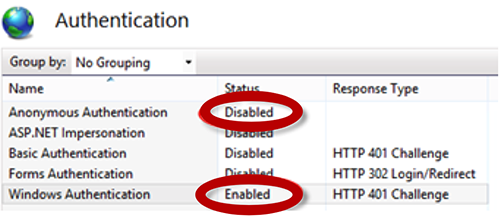
Once this is added, go to your site in IIS, click "Authentication". Change "Windows Authentication" to "Enabled" and
"Anonymous Authentication" to "Disabled".
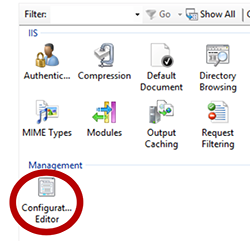
 Go to the site in the IIS Manager and open the Configuration Editor
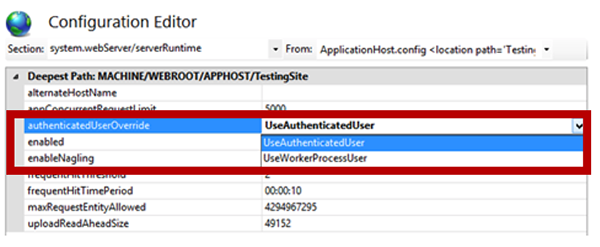
 Choose "system.webServer/serverRuntime" for the Section selection. Select UseWorkerProcessUser. Click Apply.
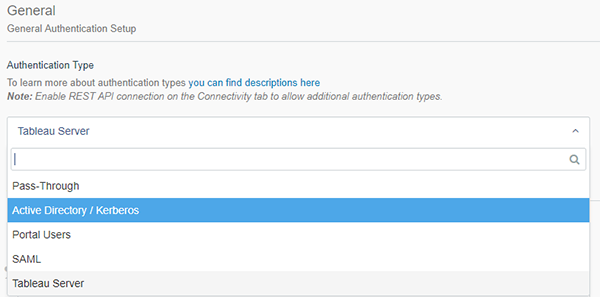
 In Curator's Tableau Server Settings, select "Active Directory" as the Authentication Type.
 If you have issues, make sure to disable UAC, to allow access to the filesystem. You can find this setting under
Control Panel > System and Security > User Account Control Settings.
If you have issues, make sure to disable UAC, to allow access to the filesystem. You can find this setting under
Control Panel > System and Security > User Account Control Settings.