> ## Documentation Index
> Fetch the complete documentation index at: https://docs.curator.interworks.com/llms.txt
> Use this file to discover all available pages before exploring further.
# Linux Installation
> Instructions for installing Curator on Linux.
The automated installer covers the vast majority of setups, but each server is different and may require
commands specific to your IT infrastructure.
## Installation Steps
If you are using one of the following Linux Operating Systems, follow our simple instruction steps to get started:
* Ubuntu
* CentOS
* RHEL
* Oracle Linux
SSH into your web server, ensure you're using a user that has full sudo access, and run the command below:
```bash theme={null}
curl -s -o curator.sh https://api.curator.interworks.com/scripts/linux_install.sh && chmod +x ./curator.sh && ./curator.sh
```
Locate your license key (sent from InterWorks) and open `/var/www/curator_info.txt` to retrieve your default
administrator credentials.
Open `http://curatorexample.com/install.php` in a browser - replacing `curatorexample.com` with your site's URL. If
you're on the server you installed, you may also use `localhost`.
*This may be an IP address or computer name until your IT team sets up DNS.*
The installer will generate credentials for use during installation and will store them in a file in the installation
directory (Default: `/var/www/curator_info.txt` or `C:\InterWorks\Curator\curator_info.txt` in Windows). You will need
these credentials to complete the installation and to log in to the Curator backend after installation.
Enter your license key when prompted. If you do not have a license key, please contact InterWorks to obtain one.
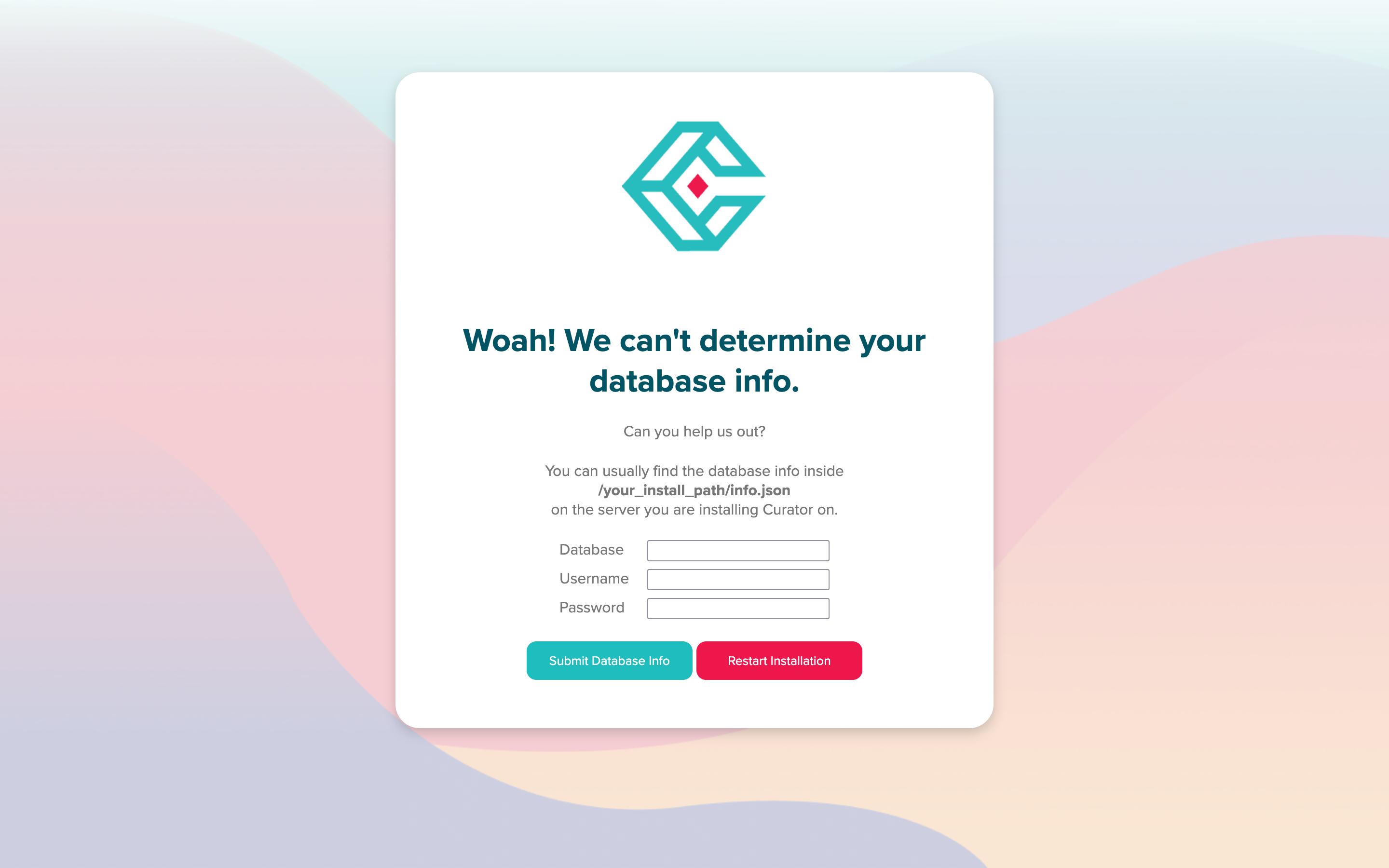
 You may be prompted to enter your database connection information if the installer is unable to automatically find the
database for you.
You may be prompted to enter your database connection information if the installer is unable to automatically find the
database for you.
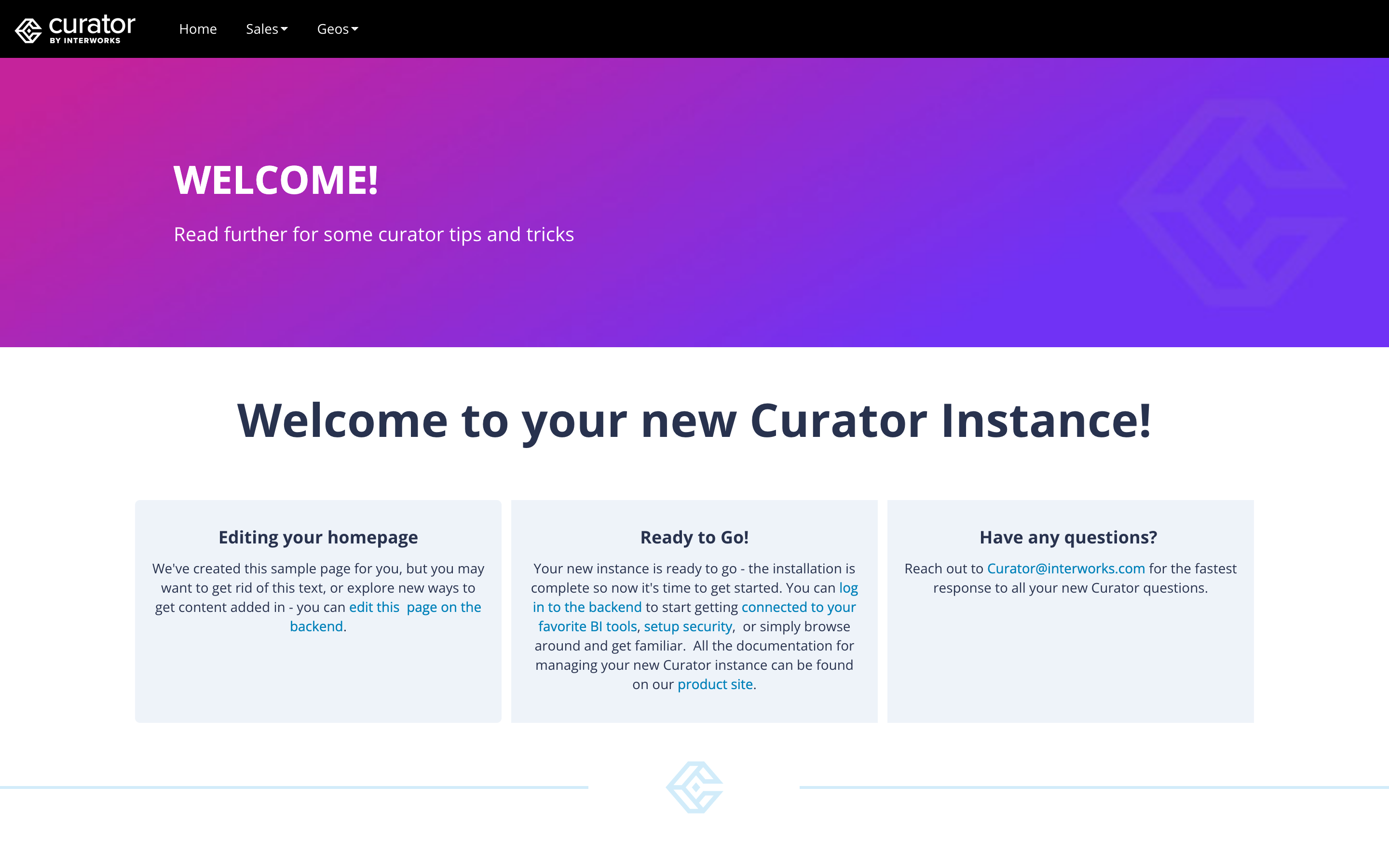
 If the installation is successful, you will be redirected to your new Curator homepage
 Using the same auto-generated credentials created in the install script above, you can log into the Curator backend which
can be accessed from `http://curatorexample.com/backend`. If you're on the server you installed, you may also use localhost.
Keep in mind this may be an IP address or computer name until your IT team sets up DNS.
## Custom Setup
The install script can take optional parameters to specify values for the installation script. This can be helpful in
distributed setups, or scripted installations.
```bash theme={null}
curl -o curator.sh https://api.curator.interworks.com/scripts/linux_install.sh
chmod +x ./curator.sh
./curator.sh -f -h [database_host] -u [database_username] -p [database_password] -P [database_port] -d [database_name] -l [license_key] -s [persistent_storage_location] -v [curator_version]
```
Arguments:
* `-h` The database hostname *Needed when using an external database host*
* `-u` The database username *`Default: curator`*
* `-p` The database password *Default: auto-generated password. Use this when you need to use a connection to a
database for a user that has already been created with a specific password.*
* `-P` The database port *`Default: 3306`*
* `-d` The database name *`Default: curator`*
* `-l` The License Key for your Curator installation. When performing a full installation, this is required.
* `-s` Path to a persistent storage location *Container-based or distributed installations typically require this.*
* `-v` Sets the version of Curator to install. *Default: most recent version.*
Options:
* `-f` Full Installation, this flag is required in most custom setups to avoid the in-browser installer.
## Key File Locations
These are the default paths for a standard Curator Linux installation. Exact locations may vary based
on your distribution and web server configuration.
To confirm the exact `php.ini` path on your system, check the `php_ini_path` field returned by the
[/portal/info](/curator_api/api_docs/curator_api#portalinfo) endpoint.
### Ubuntu 22.04 / 24.04
* Webroot: `/var/www/html`
* PHP.ini (Apache): `/etc/php/8.3/apache2/php.ini`
* PHP.ini (FPM): `/etc/php/8.3/fpm/php.ini`
### RHEL 9 / CentOS 9 / Oracle Linux 9+
* Webroot: `/var/www/html`
* PHP.ini: `/etc/opt/remi/php83/php.ini`
## Log Locations
* Application Log: `/var/www/html/storage/logs/system-YYYY-MM-DD.log`
* PHP Installer Log: `/var/www/html/assets/install.log`
* Shell Installer Log: `~/iw_install.log`
## AWS EC2 Process
AWS provides a helpful outline on [how to connect to an AWS EC2 instance from Windows using Putty](https://docs.aws.amazon.com/AWSEC2/latest/UserGuide/putty.html).
## Network Whitelist Requirements
For installations in environments with restricted internet access or firewall configurations, the following URLs
should be whitelisted to ensure proper functionality:
### RHEL/CentOS/Oracle Linux Systems
* InterWorks API
* `api.curator.interworks.com`
* EPEL Repository
* `dl.fedoraproject.org`
* `download.fedoraproject.org` (covers mirrors.fedoraproject.org)
* Remi Repository (PHP packages)
* `*.remirepo.net` (covers rpms.remirepo.net, repo.remirepo.net, mirrors.remirepo.net)
* Base RHEL/CentOS Repositories
* `*.centos.org` (covers vault.centos.org, mirror.centos.org)
* `download.redhat.com`
* `cdn.redhat.com`
* Oracle Linux Repositories (Oracle Linux only)
* `yum.oracle.com`
* `oss.oracle.com`
* CDN Networks
* `*.akamaiedge.net` (covers `*.akamaitechnologies.com` - same Akamai network)
### Ubuntu Systems
* InterWorks API
* `api.curator.interworks.com`
* Ubuntu Repositories
* `*.archive.ubuntu.com` (covers archive.ubuntu.com, us.archive.ubuntu.com, gb.archive.ubuntu.com, etc.)
* `security.ubuntu.com`
* `ports.ubuntu.com`
* `changelogs.ubuntu.com`
* Launchpad PPAs (for ondrej/apache2 and ondrej/php)
* `*.launchpad.net` (covers ppa.launchpad.net, launchpad.net)
* `ppa.launchpadcontent.net`
* `keyserver.ubuntu.com`
Using the same auto-generated credentials created in the install script above, you can log into the Curator backend which
can be accessed from `http://curatorexample.com/backend`. If you're on the server you installed, you may also use localhost.
Keep in mind this may be an IP address or computer name until your IT team sets up DNS.
## Custom Setup
The install script can take optional parameters to specify values for the installation script. This can be helpful in
distributed setups, or scripted installations.
```bash theme={null}
curl -o curator.sh https://api.curator.interworks.com/scripts/linux_install.sh
chmod +x ./curator.sh
./curator.sh -f -h [database_host] -u [database_username] -p [database_password] -P [database_port] -d [database_name] -l [license_key] -s [persistent_storage_location] -v [curator_version]
```
Arguments:
* `-h` The database hostname *Needed when using an external database host*
* `-u` The database username *`Default: curator`*
* `-p` The database password *Default: auto-generated password. Use this when you need to use a connection to a
database for a user that has already been created with a specific password.*
* `-P` The database port *`Default: 3306`*
* `-d` The database name *`Default: curator`*
* `-l` The License Key for your Curator installation. When performing a full installation, this is required.
* `-s` Path to a persistent storage location *Container-based or distributed installations typically require this.*
* `-v` Sets the version of Curator to install. *Default: most recent version.*
Options:
* `-f` Full Installation, this flag is required in most custom setups to avoid the in-browser installer.
## Key File Locations
These are the default paths for a standard Curator Linux installation. Exact locations may vary based
on your distribution and web server configuration.
To confirm the exact `php.ini` path on your system, check the `php_ini_path` field returned by the
[/portal/info](/curator_api/api_docs/curator_api#portalinfo) endpoint.
### Ubuntu 22.04 / 24.04
* Webroot: `/var/www/html`
* PHP.ini (Apache): `/etc/php/8.3/apache2/php.ini`
* PHP.ini (FPM): `/etc/php/8.3/fpm/php.ini`
### RHEL 9 / CentOS 9 / Oracle Linux 9+
* Webroot: `/var/www/html`
* PHP.ini: `/etc/opt/remi/php83/php.ini`
## Log Locations
* Application Log: `/var/www/html/storage/logs/system-YYYY-MM-DD.log`
* PHP Installer Log: `/var/www/html/assets/install.log`
* Shell Installer Log: `~/iw_install.log`
## AWS EC2 Process
AWS provides a helpful outline on [how to connect to an AWS EC2 instance from Windows using Putty](https://docs.aws.amazon.com/AWSEC2/latest/UserGuide/putty.html).
## Network Whitelist Requirements
For installations in environments with restricted internet access or firewall configurations, the following URLs
should be whitelisted to ensure proper functionality:
### RHEL/CentOS/Oracle Linux Systems
* InterWorks API
* `api.curator.interworks.com`
* EPEL Repository
* `dl.fedoraproject.org`
* `download.fedoraproject.org` (covers mirrors.fedoraproject.org)
* Remi Repository (PHP packages)
* `*.remirepo.net` (covers rpms.remirepo.net, repo.remirepo.net, mirrors.remirepo.net)
* Base RHEL/CentOS Repositories
* `*.centos.org` (covers vault.centos.org, mirror.centos.org)
* `download.redhat.com`
* `cdn.redhat.com`
* Oracle Linux Repositories (Oracle Linux only)
* `yum.oracle.com`
* `oss.oracle.com`
* CDN Networks
* `*.akamaiedge.net` (covers `*.akamaitechnologies.com` - same Akamai network)
### Ubuntu Systems
* InterWorks API
* `api.curator.interworks.com`
* Ubuntu Repositories
* `*.archive.ubuntu.com` (covers archive.ubuntu.com, us.archive.ubuntu.com, gb.archive.ubuntu.com, etc.)
* `security.ubuntu.com`
* `ports.ubuntu.com`
* `changelogs.ubuntu.com`
* Launchpad PPAs (for ondrej/apache2 and ondrej/php)
* `*.launchpad.net` (covers ppa.launchpad.net, launchpad.net)
* `ppa.launchpadcontent.net`
* `keyserver.ubuntu.com`