> ## Documentation Index
> Fetch the complete documentation index at: https://docs.curator.interworks.com/llms.txt
> Use this file to discover all available pages before exploring further.
# Windows Installation
> Instructions for installing Curator on Windows.
## Installation Steps
Log in to the server where you'd like to install Curator and [download the Curator installer for Windows](https://api.curator.interworks.com/CuratorSetup.exe).
Locate your download and right-click the file, then select "Run as Administrator" to begin the installation process.
 Click the "Install" button to run initial installation process:
 Click "Options" to change the installation directory.
The installer will generate credentials for use during installation and will store them in a file in the installation
directory (Default: `/var/www/curator_info.txt` or `C:\InterWorks\Curator\curator_info.txt` in Windows). You will need
these credentials to complete the installation and to log in to the Curator backend after installation.
Enter your license key when prompted. If you do not have a license key, please contact InterWorks to obtain one.
Click "Options" to change the installation directory.
The installer will generate credentials for use during installation and will store them in a file in the installation
directory (Default: `/var/www/curator_info.txt` or `C:\InterWorks\Curator\curator_info.txt` in Windows). You will need
these credentials to complete the installation and to log in to the Curator backend after installation.
Enter your license key when prompted. If you do not have a license key, please contact InterWorks to obtain one.
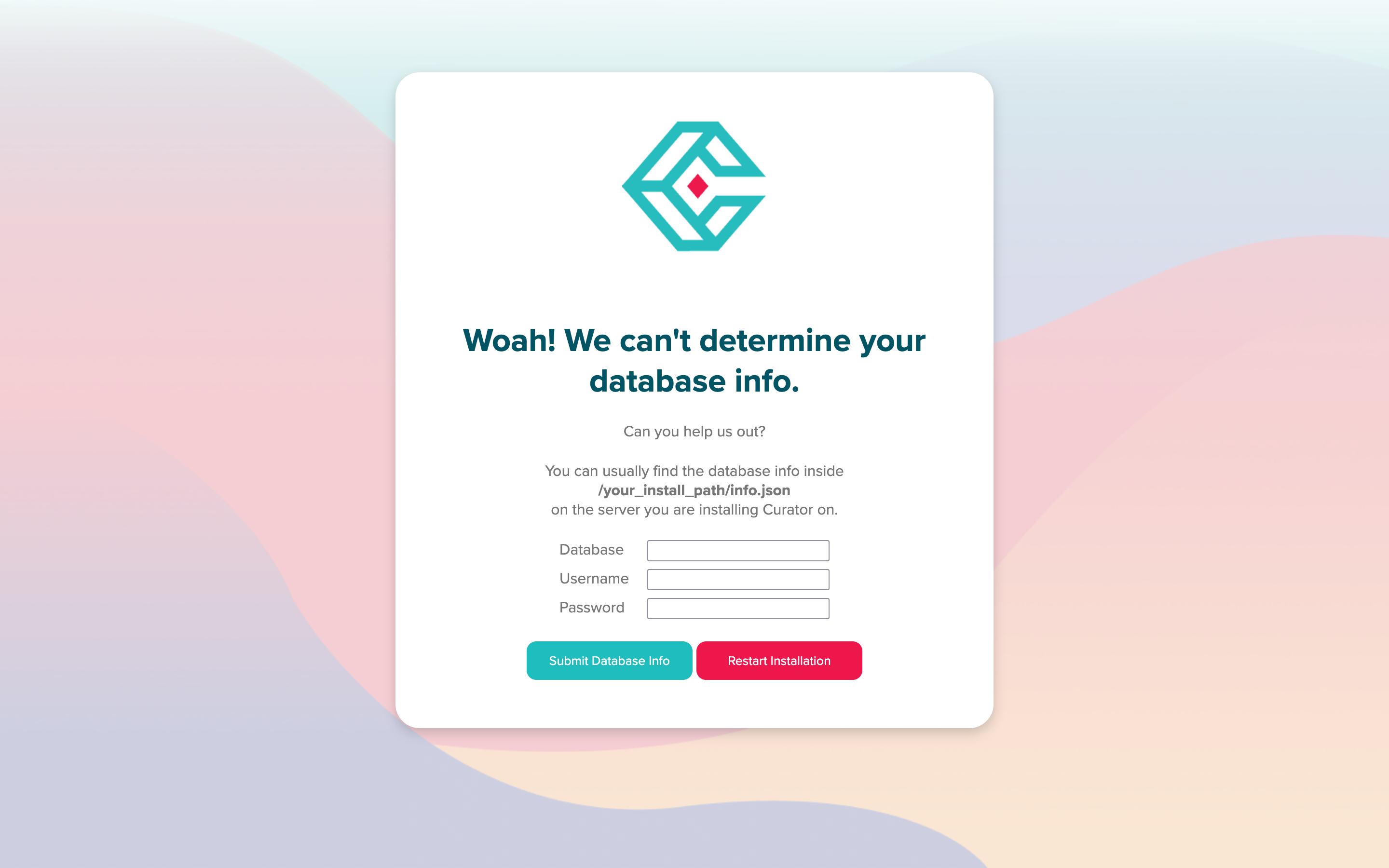
 You may be prompted to enter your database connection information if the installer is unable to automatically find the
database for you.
You may be prompted to enter your database connection information if the installer is unable to automatically find the
database for you.
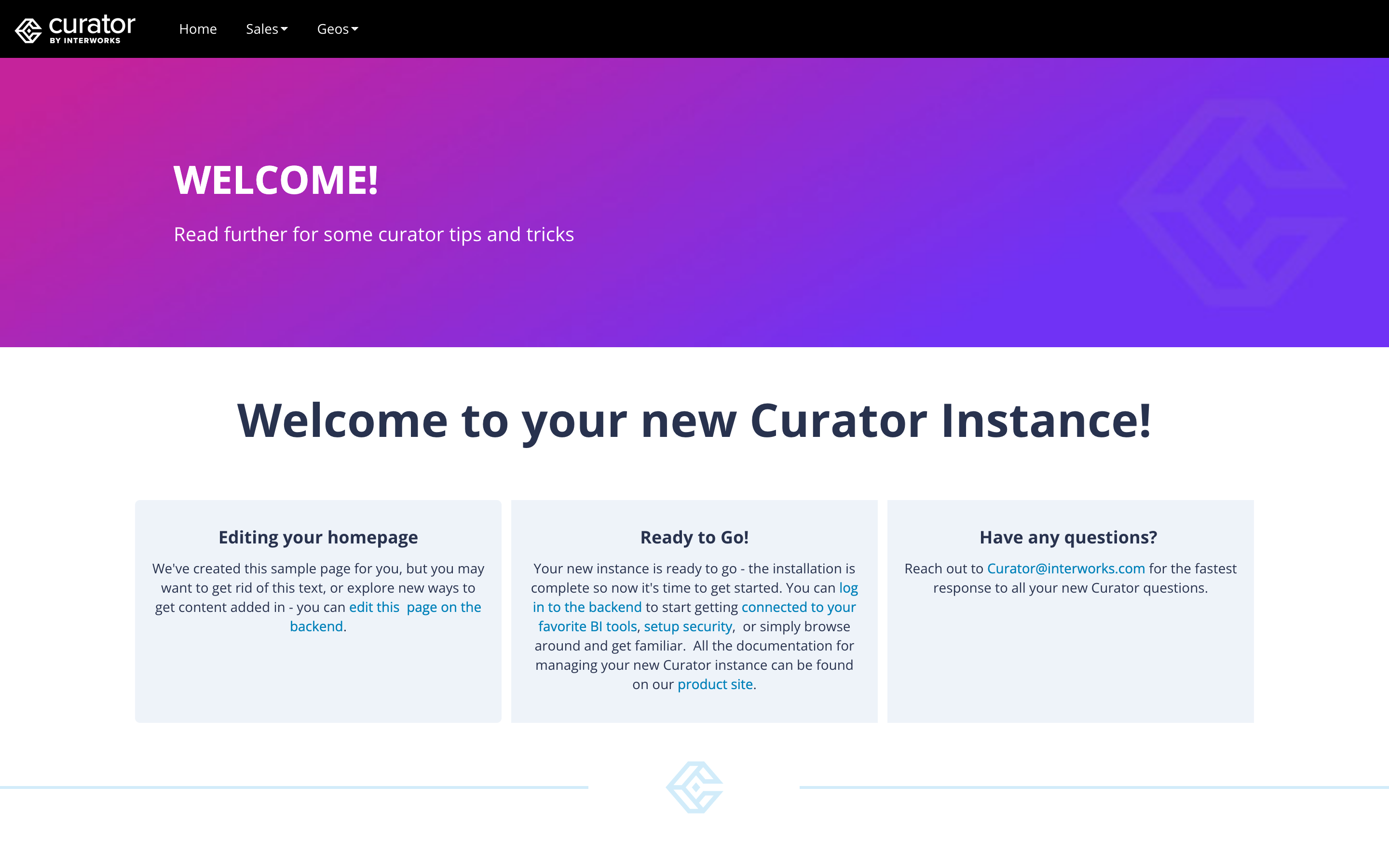
 If the installation is successful, you will be redirected to your new Curator homepage
 Using the same auto-generated credentials created in the install script above, you can log into the Curator backend which
can be accessed from `http://curatorexample.com/backend`. If you're on the server you installed, you may also use localhost.
Keep in mind this may be an IP address or computer name until your IT team sets up DNS.
## Log Locations
These paths are dependant on your installation location, but these are the default paths:
* Apache: `C:\InterWorks\Curator\httpd_errors.log`
* PHP: `C:\InterWorks\Curator\php_errors.log`
* Installation Log (EXE): `C:\InterWorks\Curator\install.log`
* Installation Log (PHP Installer): `C:\InterWorks\curator\htdocs\assets\install.log`
## Network Whitelist Requirements
If you are installing Curator in a restricted network environment, the only external URL that must
be reachable from the Curator server is:
* `https://api.curator.interworks.com`
This single host covers all outbound traffic Curator needs for installation and ongoing operation on
Windows:
* Downloading the installer (`CuratorSetup.exe`)
* Checking for new versions and downloading upgrade packages
* Validating your Curator license key
Unlike the Linux installer, the Windows installer bundles all required dependencies (Apache, PHP, and
MariaDB), so no package repository URLs need to be whitelisted.
## Other Information
These paths are dependant on your installation location, but these are the default paths:
If Curator was installed on a different drive (e.g., `D:\`), all paths below will reflect that drive
instead. To confirm the exact `php.ini` path on your system, check the `php_ini_path` field returned
by the [/portal/info](/curator_api/api_docs/curator_api#portalinfo) endpoint.
* Webroot: `C:\InterWorks\Curator\htdocs`
* HTTPD Config: `C:\InterWorks\Curator\web.conf`
* PHP.ini: `C:\InterWorks\Curator\php.ini`
* Start Process: `C:\InterWorks\Curator\start.bat` (Also desktop shortcut)
* Stop Process: `C:\InterWorks\Curator\stop.bat` (Also desktop shortcut)
* Apache Location: `C:\InterWorks\Curator\libs\Apache24`
* Database Location: `C:\InterWorks\Curator\libs\MariaDB`
* PHP Location: `C:\InterWorks\Curator\libs\PHP`
## Changing the Install Path
This is *not recommended* but may be necessary in rare circumstances. The installer will default to
`C:\InterWorks\Curator` if no changes are made to the install path. If you must change the install path, click the
"Options" button in the installer window
Using the same auto-generated credentials created in the install script above, you can log into the Curator backend which
can be accessed from `http://curatorexample.com/backend`. If you're on the server you installed, you may also use localhost.
Keep in mind this may be an IP address or computer name until your IT team sets up DNS.
## Log Locations
These paths are dependant on your installation location, but these are the default paths:
* Apache: `C:\InterWorks\Curator\httpd_errors.log`
* PHP: `C:\InterWorks\Curator\php_errors.log`
* Installation Log (EXE): `C:\InterWorks\Curator\install.log`
* Installation Log (PHP Installer): `C:\InterWorks\curator\htdocs\assets\install.log`
## Network Whitelist Requirements
If you are installing Curator in a restricted network environment, the only external URL that must
be reachable from the Curator server is:
* `https://api.curator.interworks.com`
This single host covers all outbound traffic Curator needs for installation and ongoing operation on
Windows:
* Downloading the installer (`CuratorSetup.exe`)
* Checking for new versions and downloading upgrade packages
* Validating your Curator license key
Unlike the Linux installer, the Windows installer bundles all required dependencies (Apache, PHP, and
MariaDB), so no package repository URLs need to be whitelisted.
## Other Information
These paths are dependant on your installation location, but these are the default paths:
If Curator was installed on a different drive (e.g., `D:\`), all paths below will reflect that drive
instead. To confirm the exact `php.ini` path on your system, check the `php_ini_path` field returned
by the [/portal/info](/curator_api/api_docs/curator_api#portalinfo) endpoint.
* Webroot: `C:\InterWorks\Curator\htdocs`
* HTTPD Config: `C:\InterWorks\Curator\web.conf`
* PHP.ini: `C:\InterWorks\Curator\php.ini`
* Start Process: `C:\InterWorks\Curator\start.bat` (Also desktop shortcut)
* Stop Process: `C:\InterWorks\Curator\stop.bat` (Also desktop shortcut)
* Apache Location: `C:\InterWorks\Curator\libs\Apache24`
* Database Location: `C:\InterWorks\Curator\libs\MariaDB`
* PHP Location: `C:\InterWorks\Curator\libs\PHP`
## Changing the Install Path
This is *not recommended* but may be necessary in rare circumstances. The installer will default to
`C:\InterWorks\Curator` if no changes are made to the install path. If you must change the install path, click the
"Options" button in the installer window
 then change the Install Location path:
 Please note that the paths above may no longer be valid if you change the install path.
## Installing a Specific Version
The Windows installer always installs the latest version of Curator. Unlike the
[Linux installer](/setup/installation/linux_installation), which supports a `-v` flag to specify a
particular version, the Windows installer does not offer a version selection option.
If you need to install a specific older version of Curator on Windows, please contact
[InterWorks support](https://interworks.com/contact/) for assistance.
Please note that the paths above may no longer be valid if you change the install path.
## Installing a Specific Version
The Windows installer always installs the latest version of Curator. Unlike the
[Linux installer](/setup/installation/linux_installation), which supports a `-v` flag to specify a
particular version, the Windows installer does not offer a version selection option.
If you need to install a specific older version of Curator on Windows, please contact
[InterWorks support](https://interworks.com/contact/) for assistance.