> ## Documentation Index
> Fetch the complete documentation index at: https://docs.curator.interworks.com/llms.txt
> Use this file to discover all available pages before exploring further.
# Creating Your First Page
> Learn how to use the page builder to create and customize your first content page in Curator.
Click on **Content → Pages → New Page**
To get started, enter a page title and toggle whether you want to show or hide it.
## Page Builder
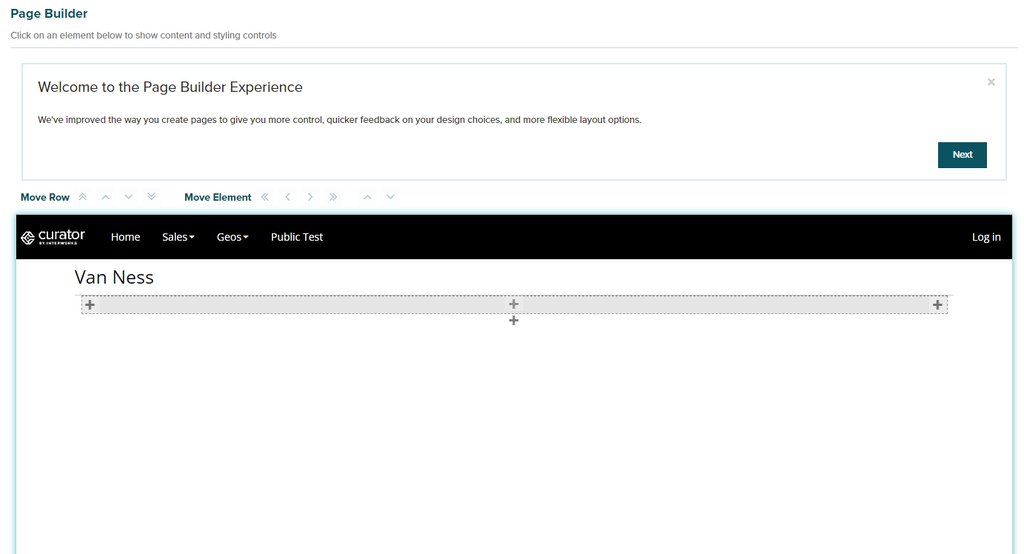
To get started with the page builder, click the + button on the empty page builder interface.
 ### Add an Element
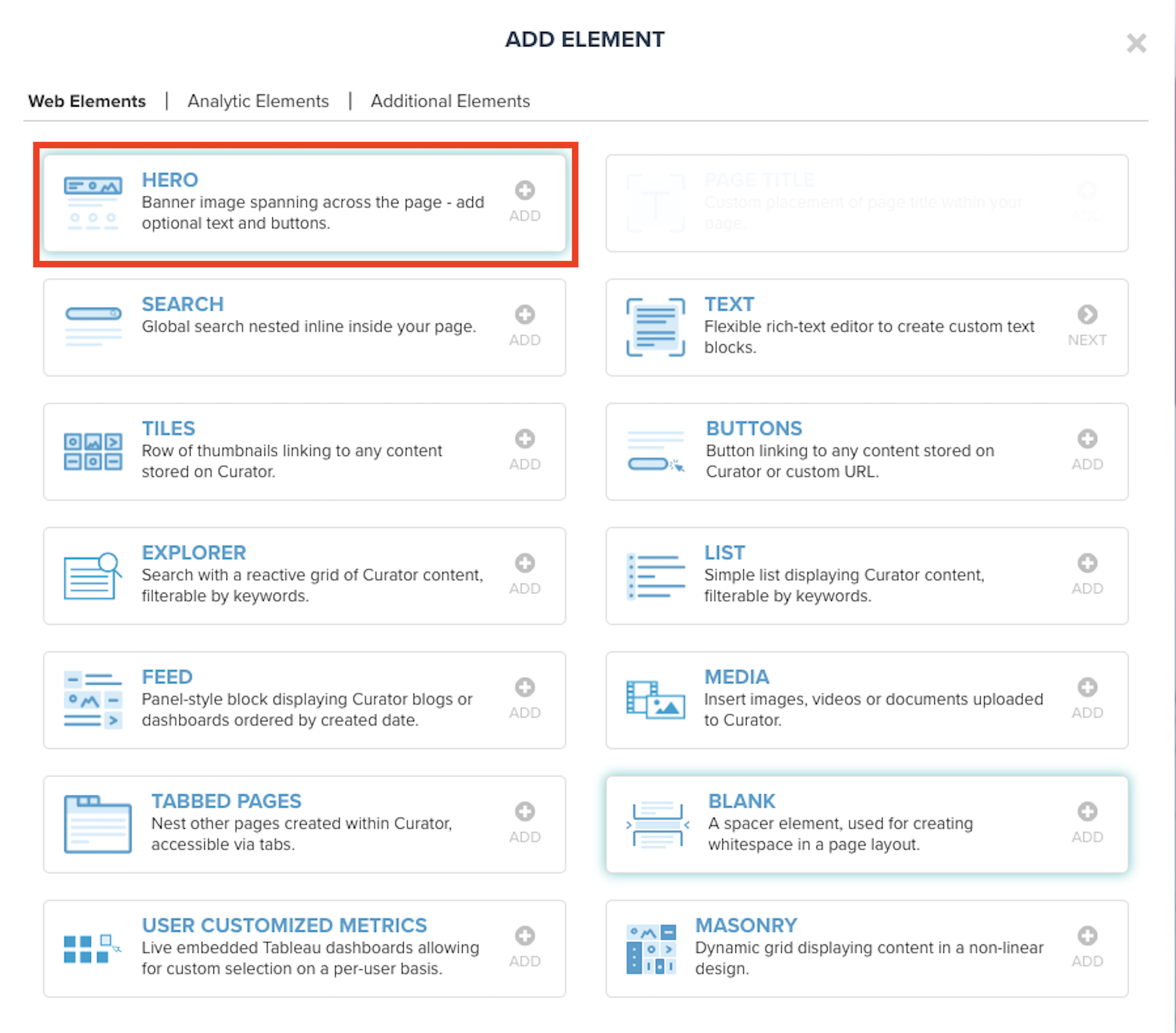
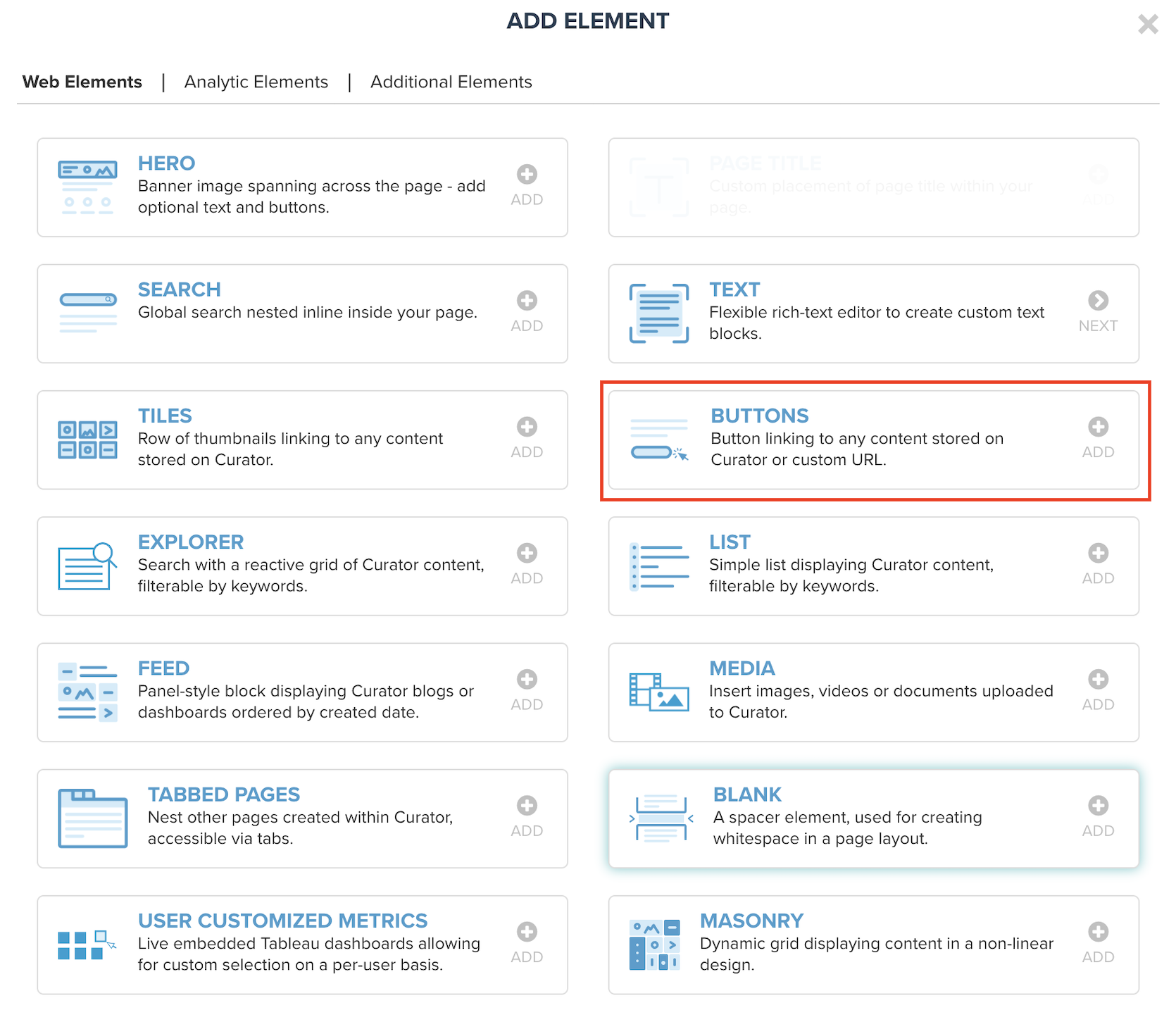
An interface will popup which gives you the option to Add an Element.
The default container in your preview represents a single element. These elements can be broken down into 3 different types:
1. **Web Elements** (Text, Banners, etc)
2. **Analytic Elements** (BI Dashboards, SSRS, etc)
3. **Additional Elements** (Unrestricted HTML, Embedded URLS, etc)
After adding an element, select the element and a menu window will appear on the left side with options to change,
delete, and customize your element.
## Example: Creating a Page
Some of our most common elements are listed below
### Add a Hero Element
1. After naming your page, the first step in our sample page will be to add a Hero Element.
2. On the left menu window, select Hero Settings and select one of the template starter images.
3. Add in a Heading (e.g. ACME Sample Page) and Body Texts and Change Text Color if needed
4. Under Row Styles, update the Row Width to Full Width if the Hero Image should go across the full width.
### Add an Element
An interface will popup which gives you the option to Add an Element.
The default container in your preview represents a single element. These elements can be broken down into 3 different types:
1. **Web Elements** (Text, Banners, etc)
2. **Analytic Elements** (BI Dashboards, SSRS, etc)
3. **Additional Elements** (Unrestricted HTML, Embedded URLS, etc)
After adding an element, select the element and a menu window will appear on the left side with options to change,
delete, and customize your element.
## Example: Creating a Page
Some of our most common elements are listed below
### Add a Hero Element
1. After naming your page, the first step in our sample page will be to add a Hero Element.
2. On the left menu window, select Hero Settings and select one of the template starter images.
3. Add in a Heading (e.g. ACME Sample Page) and Body Texts and Change Text Color if needed
4. Under Row Styles, update the Row Width to Full Width if the Hero Image should go across the full width.
 ### Add a Dashboard to a Page
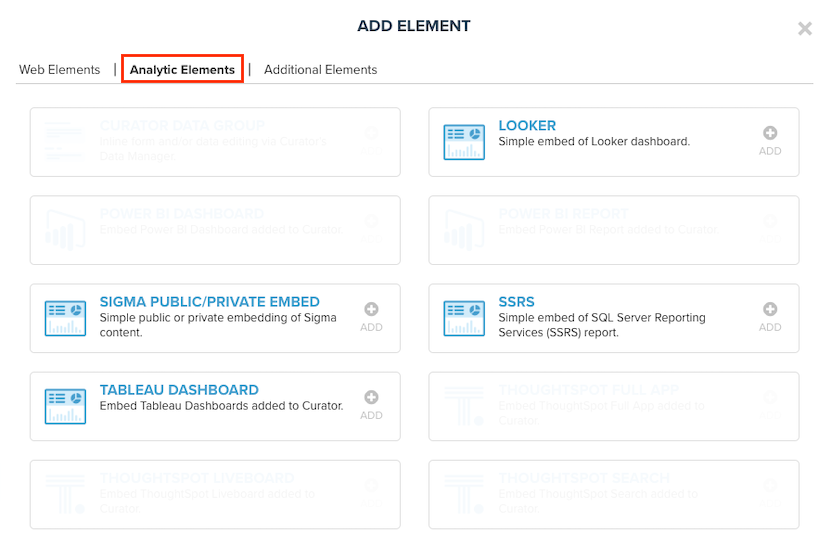
Dashboards can be either set up as standalone items or embedded within a page for greater customization on the wider page.
To add a Dashboard to a page, go ahead and add an element, select Analytic Elements and add your desired Dashboard to
replace the element.
**Note:** If the Analytics Element is unavailable to be selected, please add the relevant connection.
### Add a Dashboard to a Page
Dashboards can be either set up as standalone items or embedded within a page for greater customization on the wider page.
To add a Dashboard to a page, go ahead and add an element, select Analytic Elements and add your desired Dashboard to
replace the element.
**Note:** If the Analytics Element is unavailable to be selected, please add the relevant connection.
 ### Add a Text Field
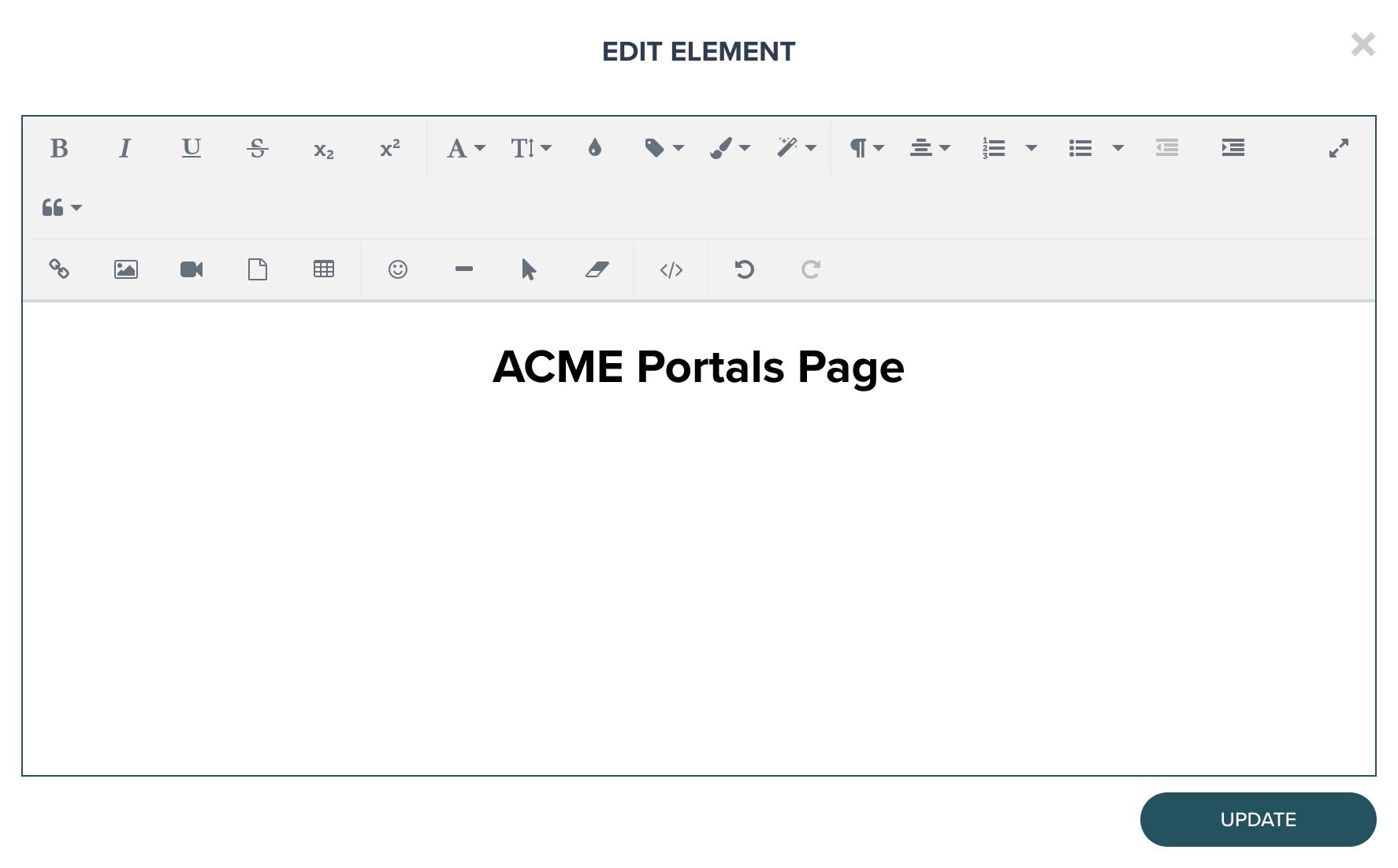
 Make updates to your text like bolding, italicizing, strike-through and many more options in the text editor.
 ### Add Buttons
 #### Buttons
Add externally linking buttons with the buttons component. Under Content Selection, link to different options like:
* Tableau/Power BI Dashboards
* Pages
* Files
* Content Tagged by Keywords
* External URLs
* Manual Selections (Combination of above options)
## Additional Options
Add more elements to customize and complete your page and then select save in the top right. Congrats your first page
has been created!
**TIP:** Clone your pages if you want to have a consistent design and save time when adding dashboards to separate pages
#### Buttons
Add externally linking buttons with the buttons component. Under Content Selection, link to different options like:
* Tableau/Power BI Dashboards
* Pages
* Files
* Content Tagged by Keywords
* External URLs
* Manual Selections (Combination of above options)
## Additional Options
Add more elements to customize and complete your page and then select save in the top right. Congrats your first page
has been created!
**TIP:** Clone your pages if you want to have a consistent design and save time when adding dashboards to separate pages