> ## Documentation Index
> Fetch the complete documentation index at: https://docs.curator.interworks.com/llms.txt
> Use this file to discover all available pages before exploring further.
# Setting Up Your Portal
> Initial setup and configuration guide to customize your Curator portal theme and frontend access.
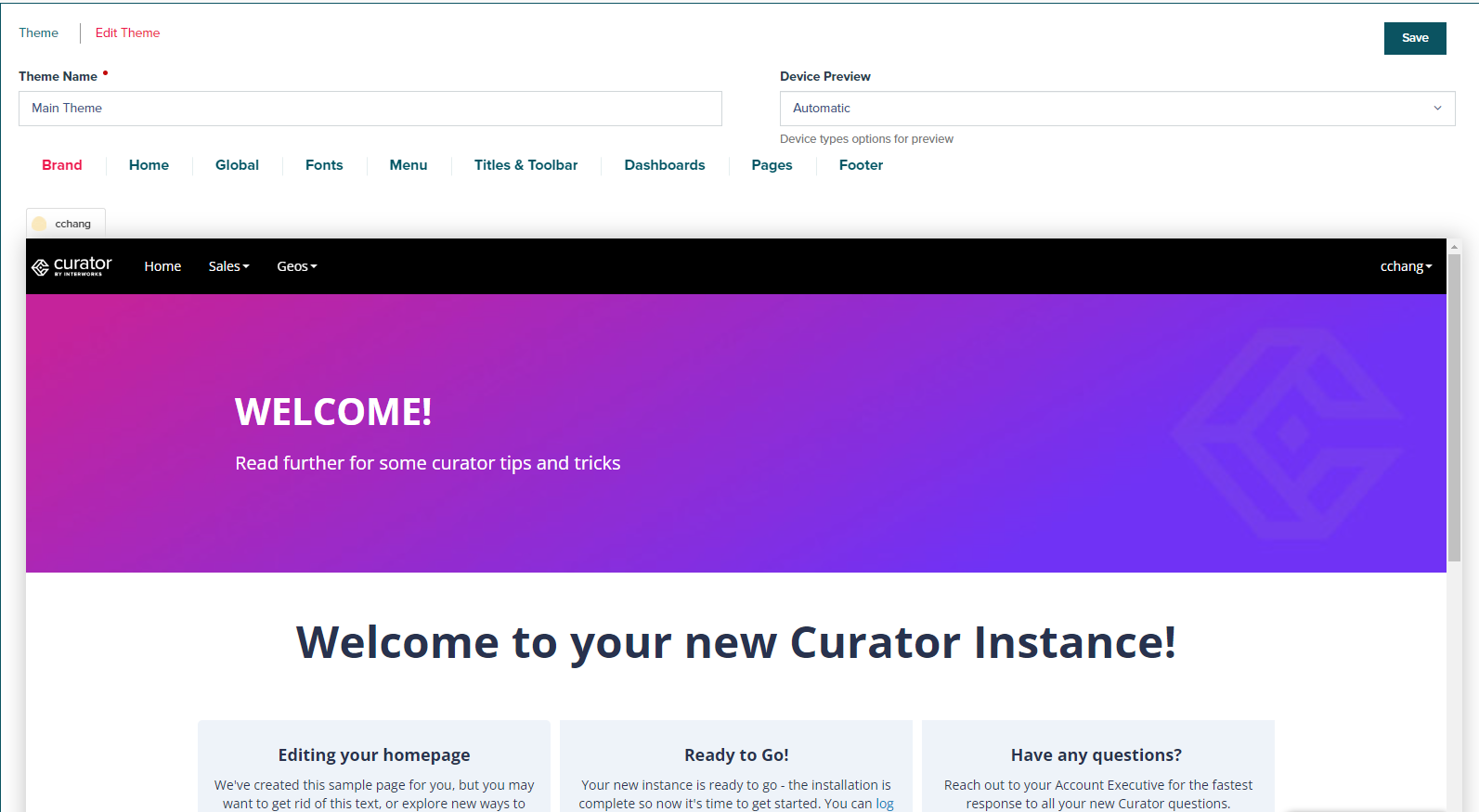
Click on **Settings → Curator → Themes → Main Theme**
Click on the Main Theme **Global Theme** to edit our global theme
A live view of your Curator site will appear on the screen. We recommend logging into the front end on a separate screen
before making any changes so that you can see the changes you make on your Curator site. Keep in mind that your admin
account is separate from the front end accounts. Your credentials may be different based on how you choose to
authenticate your users. If you are not able to log into the front end then click **Settings** → **Security** →
**Authentication Settings** to see how your front end user credentials are being pulled in.
**Live preview:**
 **On the left-hand side:**
* **Rename your Curator Site** (e.g. ACME Analytics Portal)
* **Upload a logo**
* File formats supported: .jpg, .png, .gif, .svg
* Curator is flexible with image sizes but we recommend wider over taller logos
* Logo padding by entering pixels or percentages (Ex: 15px or 20%)
* Tip: use negative padding if you are trying to increase the size of your image
* **Upload a favicon**- the icon used in the browser tab
**Favicon example:**
**On the left-hand side:**
* **Rename your Curator Site** (e.g. ACME Analytics Portal)
* **Upload a logo**
* File formats supported: .jpg, .png, .gif, .svg
* Curator is flexible with image sizes but we recommend wider over taller logos
* Logo padding by entering pixels or percentages (Ex: 15px or 20%)
* Tip: use negative padding if you are trying to increase the size of your image
* **Upload a favicon**- the icon used in the browser tab
**Favicon example:**
 **Logo and Favicon Settings:**
 **Click Save button on the top right or press enter.**
## Updating the Navigation Bar
Click on the **Menu** tab
On the left-hand side you’l see various options.
* **Main Menu**
* This lets you inter-change different main menu objects you may have created
* For now, leave this as default
* **Navigation Type**
* This lets you alter the location of the menu whether Top Navigation, Mega Menu or Side Navigation
* **Navigation Background Color**
* **Navigation Text Color**
* **Navigation Highlight Color**
There’s other navigation options as well below, but for now, we’ll stick to these main ones.
## Other Settings
There’s a whole host of other settings including:
**Brand**- Site Name, Site Logo and Icons
**Home**- Default home page settings
**Global**- Search, Alerts, Mobile Settings
**Fonts**- Customizable font options
**Menu**- Menu design settings
**Titles & Toolbar**- Pages titles and toolbar settings
**Dashboards**- Dashboard tabs
**Pages**- Tile styles, tutorial styles, button options, page margins
**Footer**- Footer options
**Click Save button on the top right or press enter.**
## Updating the Navigation Bar
Click on the **Menu** tab
On the left-hand side you’l see various options.
* **Main Menu**
* This lets you inter-change different main menu objects you may have created
* For now, leave this as default
* **Navigation Type**
* This lets you alter the location of the menu whether Top Navigation, Mega Menu or Side Navigation
* **Navigation Background Color**
* **Navigation Text Color**
* **Navigation Highlight Color**
There’s other navigation options as well below, but for now, we’ll stick to these main ones.
## Other Settings
There’s a whole host of other settings including:
**Brand**- Site Name, Site Logo and Icons
**Home**- Default home page settings
**Global**- Search, Alerts, Mobile Settings
**Fonts**- Customizable font options
**Menu**- Menu design settings
**Titles & Toolbar**- Pages titles and toolbar settings
**Dashboards**- Dashboard tabs
**Pages**- Tile styles, tutorial styles, button options, page margins
**Footer**- Footer options