> ## Documentation Index
> Fetch the complete documentation index at: https://docs.curator.interworks.com/llms.txt
> Use this file to discover all available pages before exploring further.
# Accessing the Backend
> Learn how to access the backend of Curator for configuration and management tasks.
To access the backend administration area of your Curator instance, you will need to log in with an account that has
administrative privileges. Typically this is created in the [initial setup](setup/installation/linux_installation) of
your Curator instance, or by an [existing administrator](site_administration/backend_administrators/overview).
### Logging into the Backend
1. Open your web browser and navigate to the backend URL of your Curator instance. This is usually in the format:
`https://www.yourcuratorexample.com/backend`.
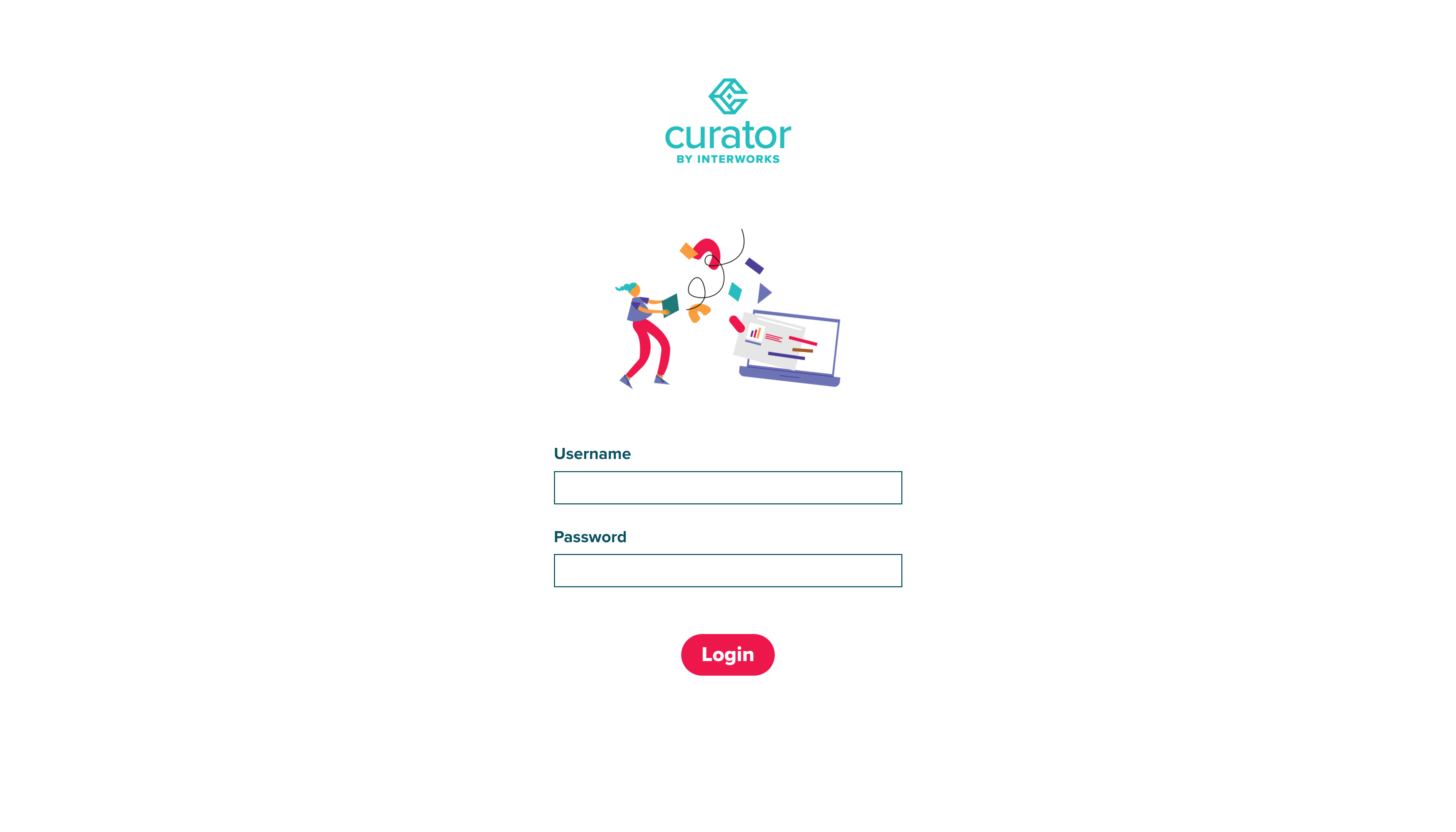 2. Enter your administrator username and password in the login form.