> ## Documentation Index
> Fetch the complete documentation index at: https://docs.curator.interworks.com/llms.txt
> Use this file to discover all available pages before exploring further.
# Updating License Key
> Update or add your Curator license key for new installations, migrations, or license renewals.
Adding or updating your license key is only required for new installations, or migrations that have failed to
carry over your license key. Typical license keys are allowed on up to 3 instances so long as only one
instance is used for Production. If you'd like to deploy multiple Curator sites, please talk to your Account
Executive about our Enterprise offering.
## How to Update your License Key
In order to add or update your license key, follow the steps below:
1. Login to the backend of your Curator instance (e.g. `http://curatorexample.com/backend`).
2. Navigate to the **Settings** > **Curator** > **System Upgrade** section from the left-hand menu.
3. Click on the pencil "Update Key" link
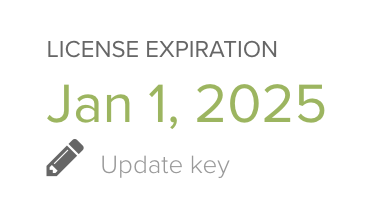 4. Enter your license key and click "Save".
## Troubleshooting
If the license key fails to activate, work through the following checks to ensure your license is valid:
1. **Check your active instance count.** Standard license keys cover up to 3 instances (with only one in Production).
If you have retired an older instance — for example after a server migration — it may still count against the
limit.
Contact support to deregister the retired instance, or talk to your Account Executive about upgrading to our Enterprise offering if you need to run more than 3 instances concurrently.
2. **Copy and paste the key exactly.** Retyping the key by hand is the most common cause of activation failures.
Paste the key directly from the email or portal where you received it, and confirm there are no leading or
trailing spaces.
3. **Verify via CLI.** If the Curator backend is unavailable or inaccessible — for example on a fresh install that
has not yet been fully configured — set the key from the command line instead:
```bash theme={null}
php artisan curator:setkey your-license-key
```
If none of the above resolves the issue, [contact support](http://interworks.com/help). Please make sure to
include your Curator version, the license key you are attempting to activate, the URL of the instance,
and a screenshot of any error messages shown in the backend.
4. Enter your license key and click "Save".
## Troubleshooting
If the license key fails to activate, work through the following checks to ensure your license is valid:
1. **Check your active instance count.** Standard license keys cover up to 3 instances (with only one in Production).
If you have retired an older instance — for example after a server migration — it may still count against the
limit.
Contact support to deregister the retired instance, or talk to your Account Executive about upgrading to our Enterprise offering if you need to run more than 3 instances concurrently.
2. **Copy and paste the key exactly.** Retyping the key by hand is the most common cause of activation failures.
Paste the key directly from the email or portal where you received it, and confirm there are no leading or
trailing spaces.
3. **Verify via CLI.** If the Curator backend is unavailable or inaccessible — for example on a fresh install that
has not yet been fully configured — set the key from the command line instead:
```bash theme={null}
php artisan curator:setkey your-license-key
```
If none of the above resolves the issue, [contact support](http://interworks.com/help). Please make sure to
include your Curator version, the license key you are attempting to activate, the URL of the instance,
and a screenshot of any error messages shown in the backend.