> ## Documentation Index
> Fetch the complete documentation index at: https://docs.curator.interworks.com/llms.txt
> Use this file to discover all available pages before exploring further.
# Text Element
> WYSIWYG text elements for adding formatted text, links, and images to your Curator pages.
## Adding a Text Element
1. Login to the backend of your Curator instance (e.g. `http://curatorexample.com/backend`).
2. Navigate to the **Content** > **Pages** section from the left-hand menu.
3. Find the page you want to add your form to from the Pages list or click "New Page" to create a new page.
4. Add a new element to your page, and when the modal pops-up select the "Text" option.
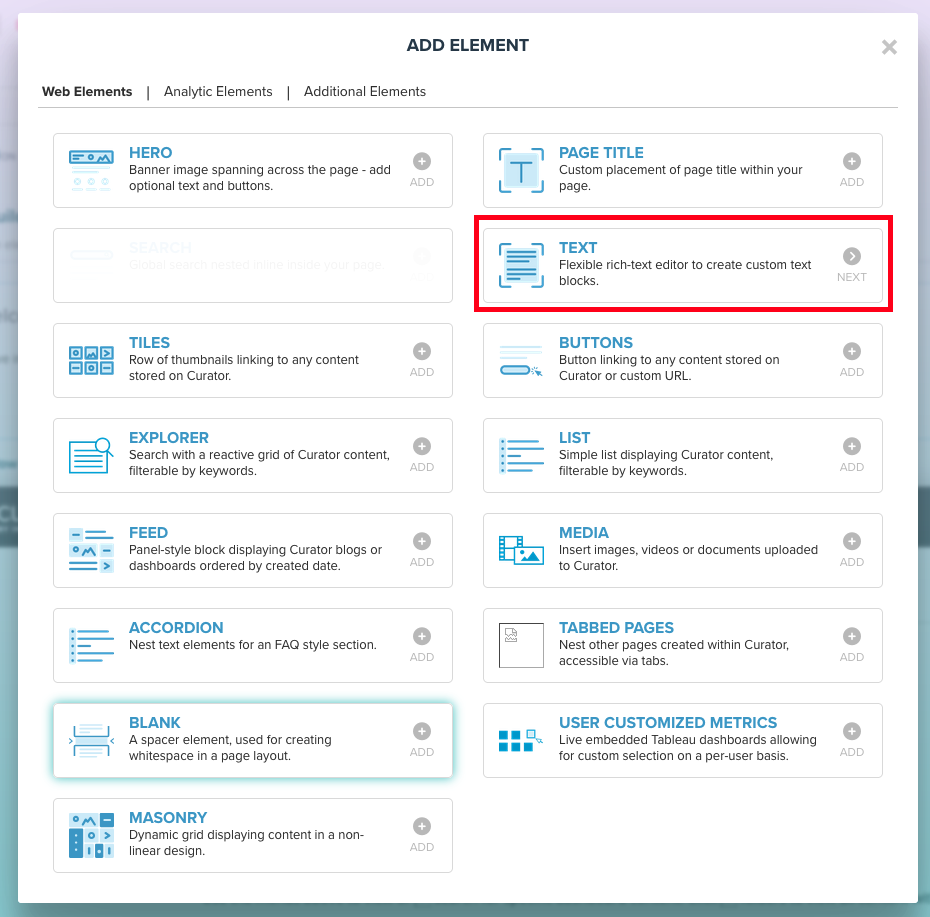 5. You will then be prompted with the WYSIWYG editor, where you can add and format your text, add links, and images.
 ## Page Variables
Page variables can be used to display important user or session based information on pages.
* `{{ full_name }}` : Displays the full name for the logged in user
* `{{ first_name }}` : Displays the first name for the logged in user
* `{{ last_name }}` : Displays the last name for the logged in user
* `{{ username }}` : Displays the Curator username for the logged in user
* `{{ original_username }}` : Displays the original username for the logged in user
## Page Variables
Page variables can be used to display important user or session based information on pages.
* `{{ full_name }}` : Displays the full name for the logged in user
* `{{ first_name }}` : Displays the first name for the logged in user
* `{{ last_name }}` : Displays the last name for the logged in user
* `{{ username }}` : Displays the Curator username for the logged in user
* `{{ original_username }}` : Displays the original username for the logged in user