> ## Documentation Index
> Fetch the complete documentation index at: https://docs.curator.interworks.com/llms.txt
> Use this file to discover all available pages before exploring further.
# Tableau Cloud Setup
> Configure Tableau Cloud with Curator using connected apps for secure authentication and seamless dashboard integration.
export const BackendNavPath = ({levelOne, levelTwo, levelThree, tab, section}) => {
const levels = [levelOne, levelTwo, levelThree].filter(Boolean);
const lastLevel = levels.length ? levels[levels.length - 1] : '';
return
In the backend of Curator using the left-hand navigation,
navigate to the
{levelOne && {" " + levelOne}}
{levelOne && levelTwo && " > "}
{levelTwo && {levelTwo}}
{levelTwo && levelThree && " > "}
{levelThree && {levelThree}} page.
{(tab || section) && <>
{" "}On the {lastLevel} page
{tab && <> click the {tab} tab}
{tab && section && " and"}
{section && <> expand the {section} section}.
}
;
};
## Creating a new Connection
Follow the steps in the [Tableau Connection Setup](/creating_integrations/tableau_connection/creating_a_connection)
section to get connected to your Tableau Server.
## Connected Apps
As of the `01-04-23` Curator release, Tableau's connected apps are now supported as a method of authentication.
This means SSO is no longer required to support a seamless authentication experience for Tableau Cloud users. All
Tableau Cloud connections in Curator utilize connected apps. Curator will create a connected app on your Tableau Cloud
site if one doesn't already exist. You may switch which connected app Curator uses if you need.
For more information and a troubleshooting guide, refer to our article about
[Creating Integrations: Tableau Connection - Connected Apps](/creating_integrations/tableau_connection/embed_authentication)
## Custom Domains
In the August 2025 release of Tableau Cloud, Tableau introduced the ability to use custom domains (also known as vanity
URLs). This feature primarily circumvents the need for users to modify their browser's cookie settings to allow
third-party cookies, creating a truly seamless authentication experience when accessing Tableau dashboards via Curator.
*This feature is only available in Curator versions `2025-10-02` and later.*
### Setting up a Custom Domain on Tableau Cloud
To set up a custom domain on Tableau Cloud, follow the [instructions provided by Tableau](https://help.tableau.com/current/online/en-us/custom_domain.htm).
### Adding your Custom Domain to Curator
Once your custom domain is set up and verified on Tableau Cloud, add your custom domain to Curator to add it to Curator
to ensure seamless integration. Begin by navigating to your Tableau Cloud connection in Curator. Then, follow these
steps:
1. Click on the Tableau connection you'd like to modify.
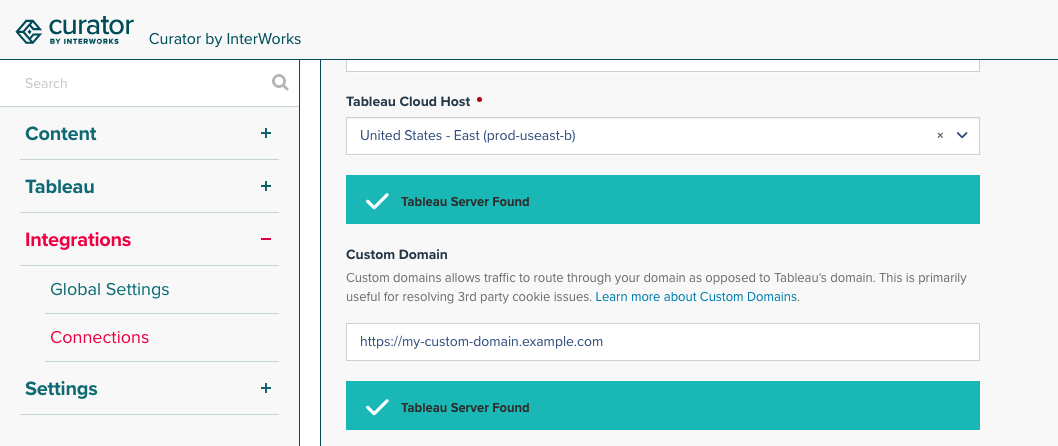
2. In the **Tableau Connection** section, enter your custom domain URL in the **Custom Domain** field.
3. Confirm that Curator can reach the domain, and that there are no warnings:
 4. Click **Save** to apply your changes.
Now when users access embedded Tableau Cloud dashboards they will be loaded through your Custom Domain in Curator.
### Adding a Custom Domain to a Secondary Tableau Cloud Site
When your Tableau Cloud tenant hosts more than one site, Curator stores each additional site as a secondary site
under the primary Tableau Cloud connection. Tableau binds each Custom Domain to a single site, so secondary sites
must declare their own Custom Domain - they do **not** inherit the primary site's Custom Domain.
To add a Custom Domain for a secondary Tableau Cloud site, navigate to the same Tableau Cloud connection in Curator
and follow these steps:
1. Scroll to the **Secondary Sites** section of the connection form.
2. Locate the secondary site you want to configure (or add a new one).
3. Enter the secondary site's custom domain URL in its **Custom Domain** field.
4. Click **Save** to apply your changes.
If a secondary Tableau Cloud site does not have a Custom Domain configured, its embedded dashboards will load
through Tableau's tenant host (e.g. `https://10ax.online.tableau.com`) rather than the primary site's Custom
Domain. Pointing a secondary site's embed URL at the primary site's Custom Domain causes Tableau's embed signin
to fail, so leaving the secondary site's **Custom Domain** field empty is the correct configuration when no
vanity host has been set up for that site.
4. Click **Save** to apply your changes.
Now when users access embedded Tableau Cloud dashboards they will be loaded through your Custom Domain in Curator.
### Adding a Custom Domain to a Secondary Tableau Cloud Site
When your Tableau Cloud tenant hosts more than one site, Curator stores each additional site as a secondary site
under the primary Tableau Cloud connection. Tableau binds each Custom Domain to a single site, so secondary sites
must declare their own Custom Domain - they do **not** inherit the primary site's Custom Domain.
To add a Custom Domain for a secondary Tableau Cloud site, navigate to the same Tableau Cloud connection in Curator
and follow these steps:
1. Scroll to the **Secondary Sites** section of the connection form.
2. Locate the secondary site you want to configure (or add a new one).
3. Enter the secondary site's custom domain URL in its **Custom Domain** field.
4. Click **Save** to apply your changes.
If a secondary Tableau Cloud site does not have a Custom Domain configured, its embedded dashboards will load
through Tableau's tenant host (e.g. `https://10ax.online.tableau.com`) rather than the primary site's Custom
Domain. Pointing a secondary site's embed URL at the primary site's Custom Domain causes Tableau's embed signin
to fail, so leaving the secondary site's **Custom Domain** field empty is the correct configuration when no
vanity host has been set up for that site.