

Page Builder
To get started with the page builder, click the + button on the empty page builder interface.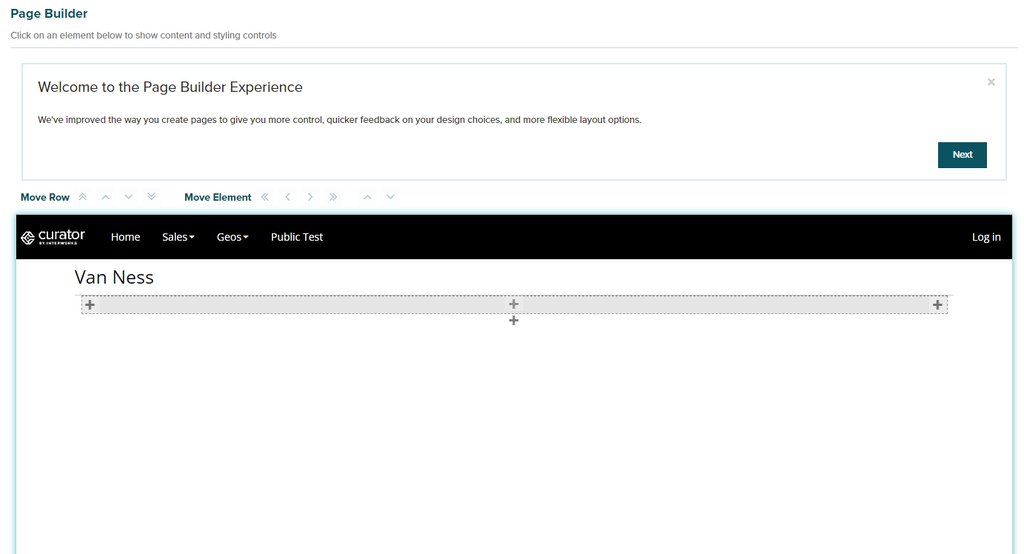
Add an Element
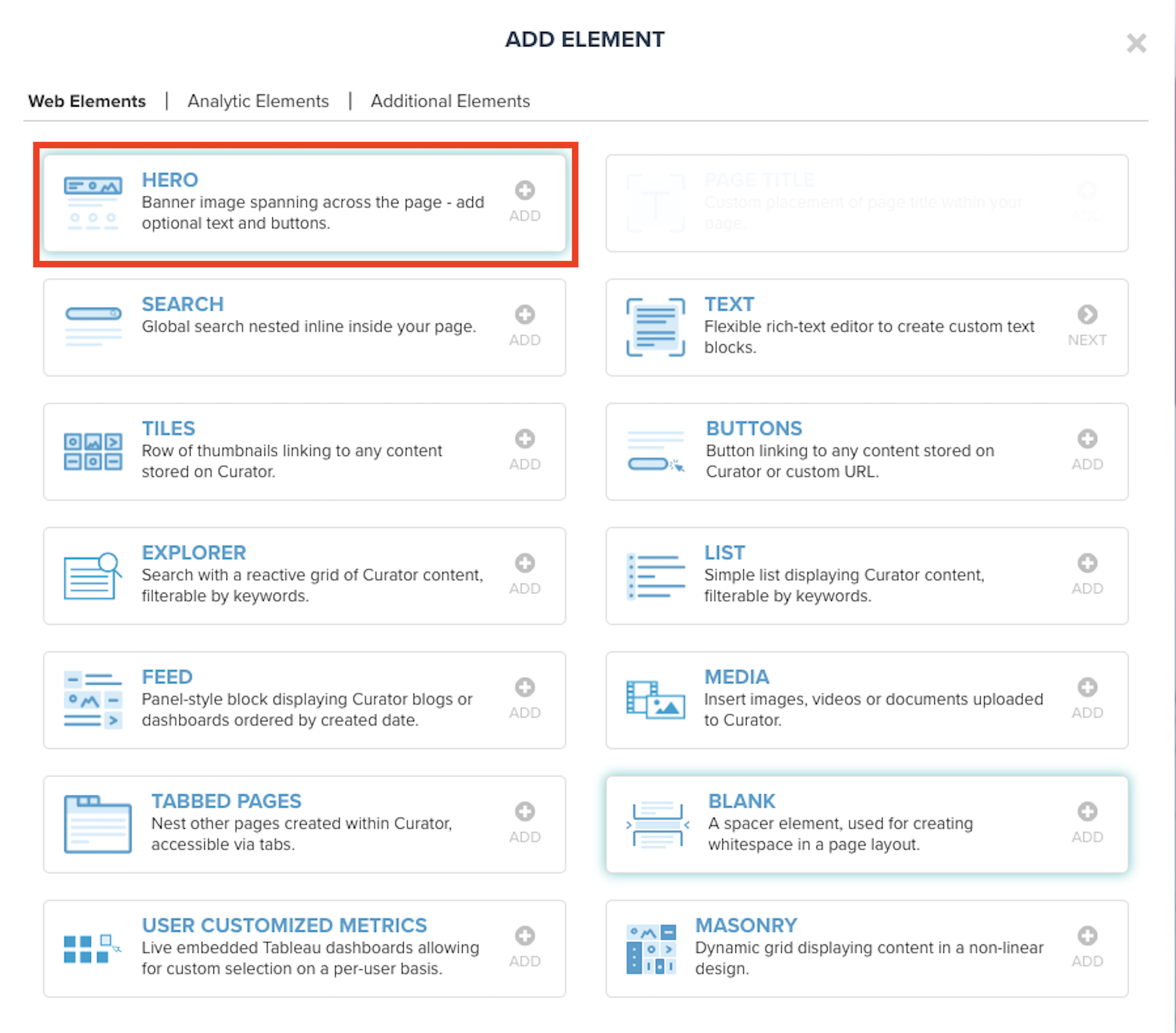
An interface will popup which gives you the option to Add an Element. The default container in your preview represents a single element. These elements can be broken down into 3 different types:- Web Elements (Text, Banners, etc)
- Analytic Elements (BI Dashboards, SSRS, etc)
- Additional Elements (Unrestricted HTML, Embedded URLS, etc)
Example: Creating a Page
Some of our most common elements are listed belowAdd a Hero Element
- After naming your page, the first step in our sample page will be to add a Hero Element.
- On the left menu window, select Hero Settings and select one of the template starter images.
- Add in a Heading (e.g. ACME Sample Page) and Body Texts and Change Text Color if needed
- Under Row Styles, update the Row Width to Full Width if the Hero Image should go across the full width.
Add a Dashboard to a Page
Dashboards can be either set up as standalone items or embedded within a page for greater customization on the wider page. To add a Dashboard to a page, go ahead and add an element, select Analytic Elements and add your desired Dashboard to replace the element. Note: If the Analytics Element is unavailable to be selected, please add the relevant connection.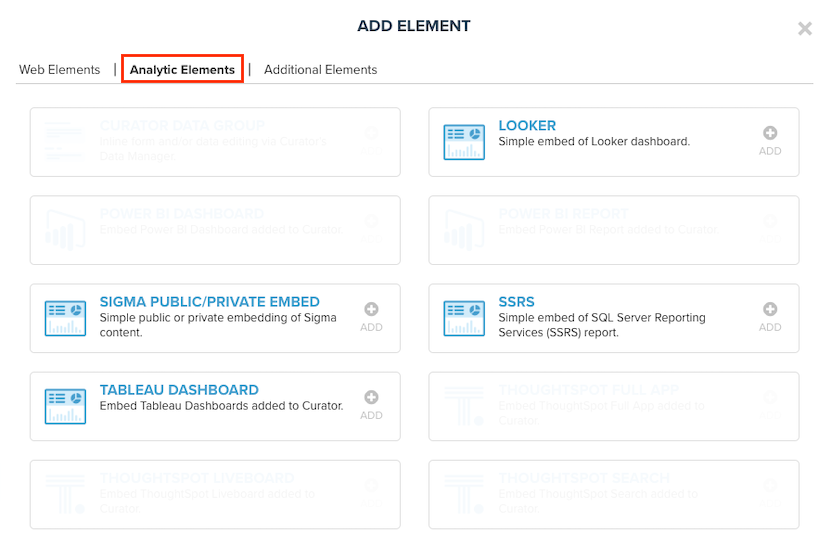
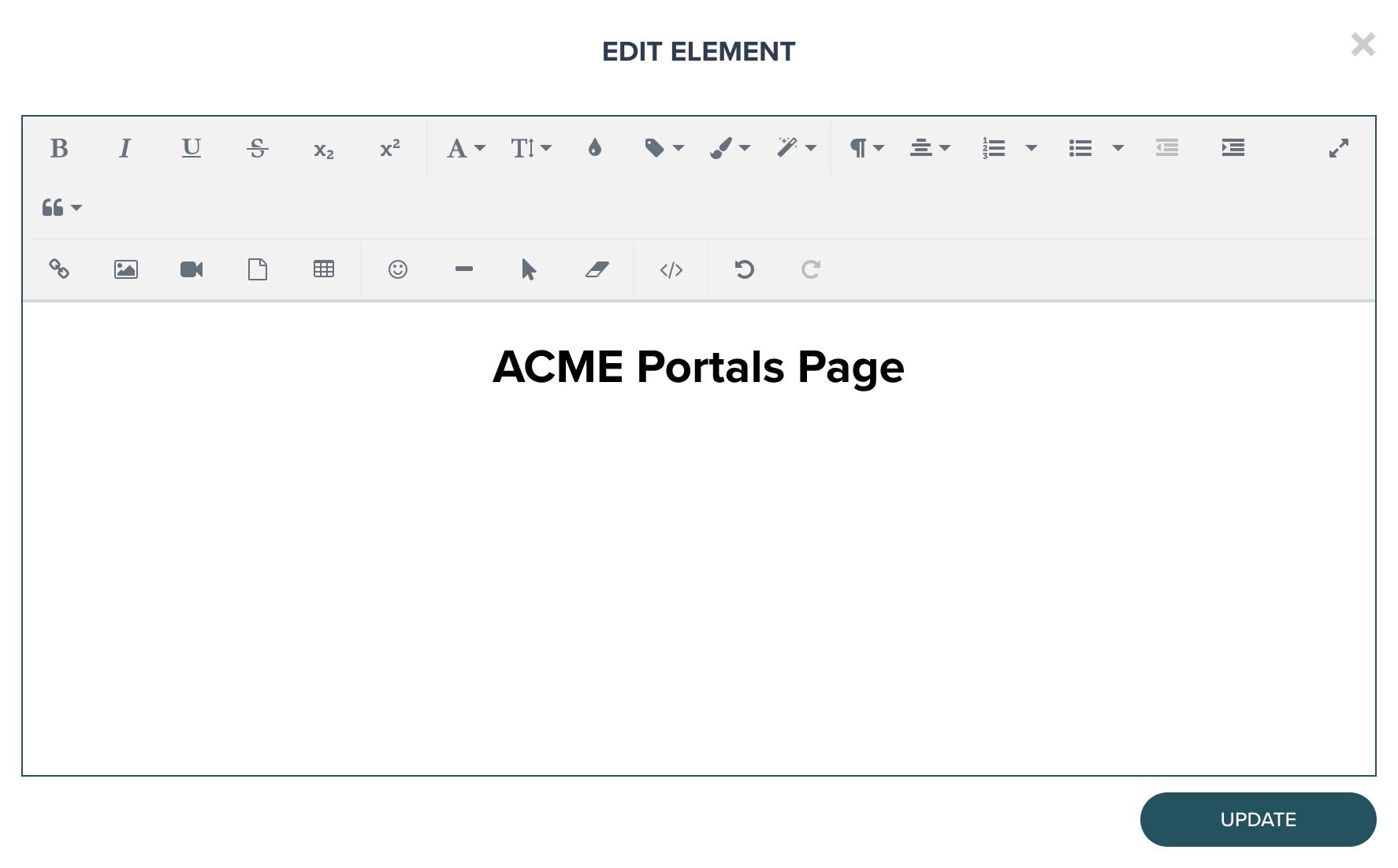
Add a Text Field

Add Buttons
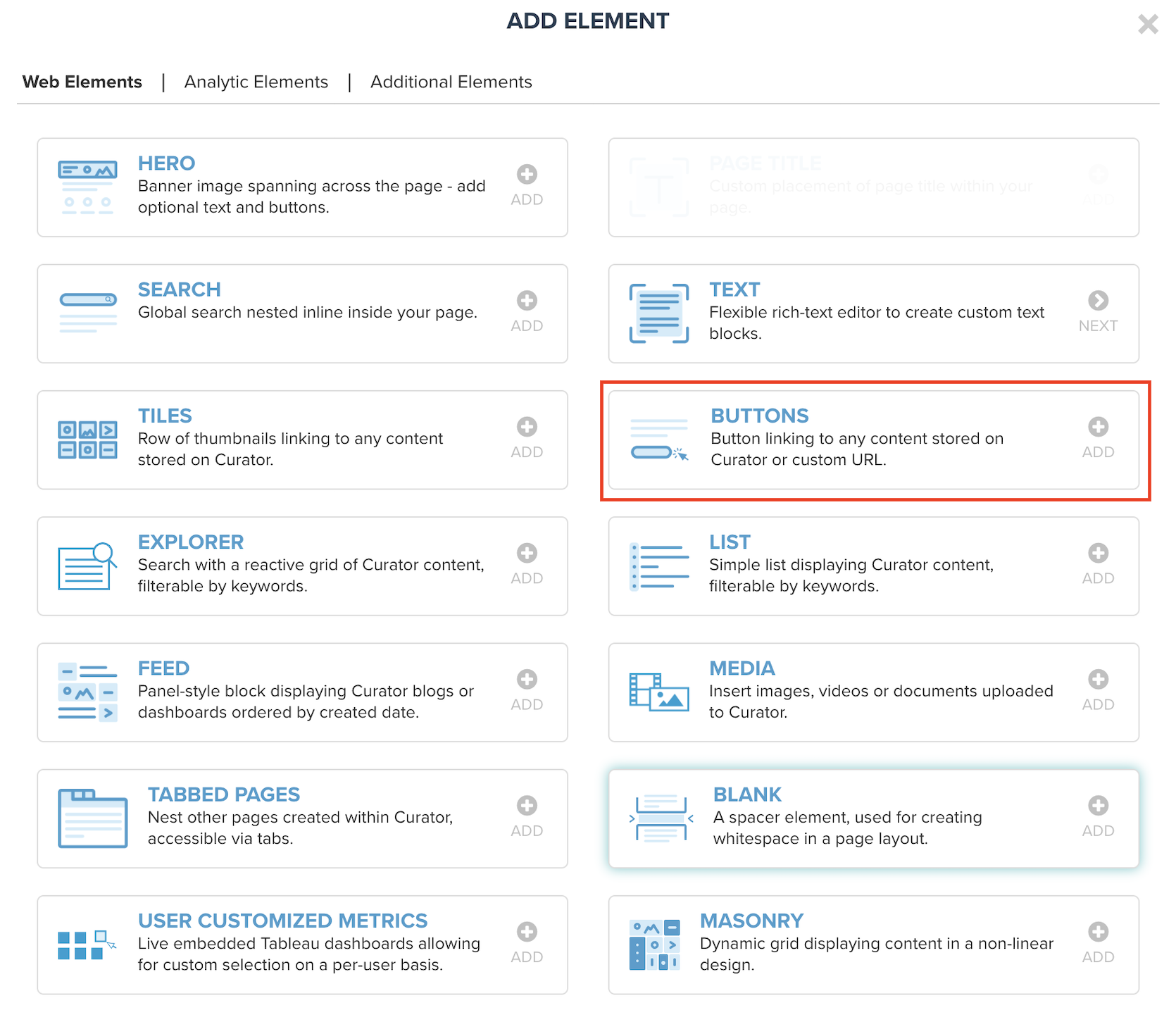
Buttons
Add externally linking buttons with the buttons component. Under Content Selection, link to different options like:- Tableau/Power BI Dashboards
- Pages
- Files
- Content Tagged by Keywords
- External URLs
- Manual Selections (Combination of above options)