

Adding A Power BI Report to Pages
Once a Power BI Report has been added to Curator follow the steps below to add it to a page:- Find the page you’d like to add your Power BI Report to, or click the ”+ New Page” button.
- Select the element you’d like to make a Power BI Report, or click the plus (+) icon to add a new blank element.
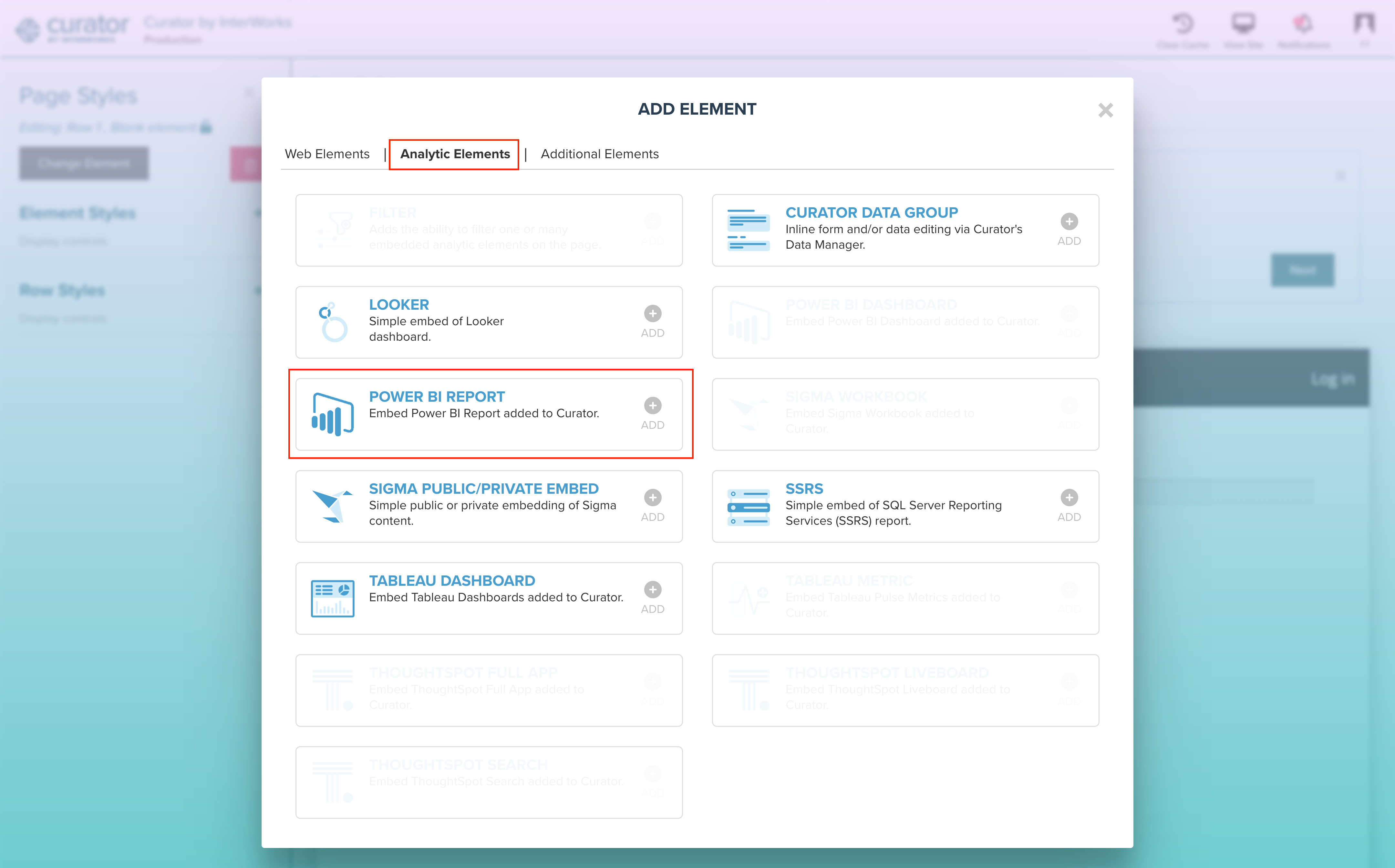
- In the “Add Element” pop-up, click on the Analytic Elements tab at the top and select the Power BI Report
option.
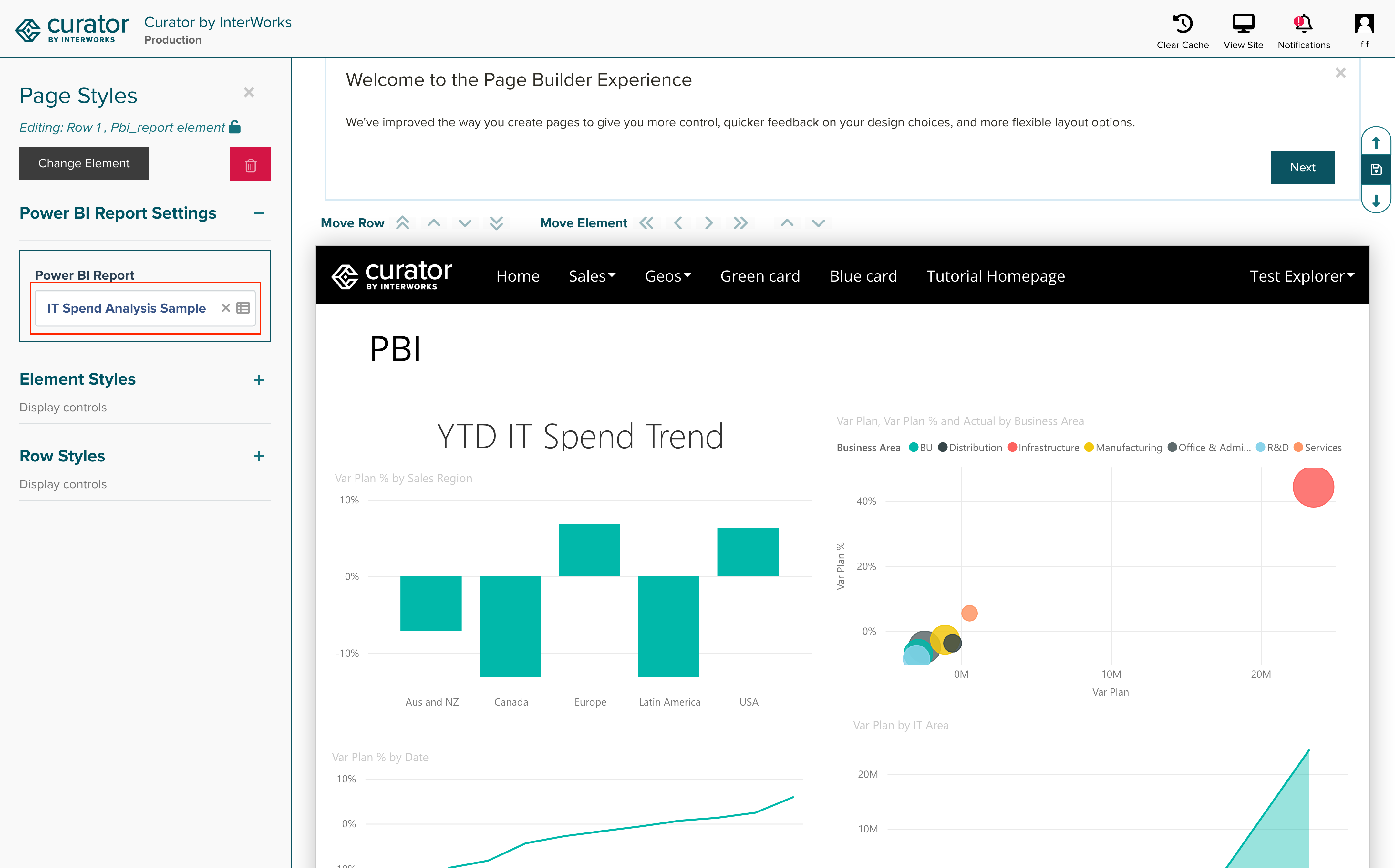
- In the Page Styles section on the left-hand side, you can choose the Report to Embed.
- Click Save.