

This article applies to all iframe-based embedded content in Curator, including Tableau dashboards and Page Builder iframes.
While earlier versions of this guide focused on Tableau, Chrome’s Local Network Access restrictions affect any content
loaded in an iframe.Curator applies a built-in mitigation to embedded iframes automatically (see
Curator-side mitigation), but that mitigation alone does not resolve the issue in most
affected environments — your IT team will usually also need to configure the browser policies described in
Solutions for managed environments.
Overview
If you’re running Google Chrome 142 (or later) or Microsoft Edge 143 (or later), you may find that embedded content in Curator fails to load. Instead of seeing your Dashboard or embedded page, you might see a blank area where the content should appear. This happens because of a new security feature in Chromium browsers called Local Network Access restrictions (LNA). This feature blocks public websites from connecting to devices or services on your local network. While Curator and your analytics platforms use only public HTTPS endpoints, certain security tools on your computer can trigger this restriction and break embedded content. You can read more about this feature in Chrome’s developer blog and Tableau’s documentation.Symptoms
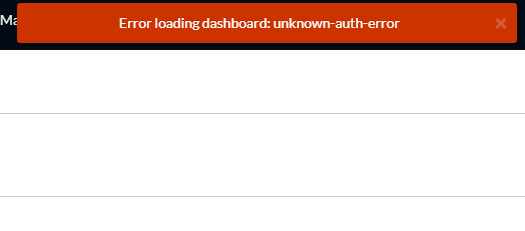
- You might see a blank area, loading screen, or error message where embedded content should appear.
- Error messages in the browser saying a public page tried to connect to devices on the local network.
- Content loads in other browsers - The same content works fine in Firefox, Safari, or older versions of Chrome/Edge.
- Works on other devices - The content loads normally on personal devices that aren’t connected to your corporate network.
Why this happens
What is Local Network Access?
Chrome 142 (release notes) and Edge 143 (release notes) introduced Local Network Access (LNA) restrictions to protect users from malicious websites trying to access devices on their local network. When a public website tries to connect to these addresses, the browser will block or prompt:- Loopback addresses:
127.0.0.1,localhost - Private IP ranges:
10.x.x.x,172.16-31.x.x,192.168.x.x - Carrier-grade NAT ranges:
100.64.0.0to100.127.255.255(commonly used by security products)
local-network (shown in the browser’s permission UI as Local Network) and loopback-network (shown as
Apps on device). The original local-network-access permission name remains supported as an alias that covers
both. You may see either naming in browser prompts and site-permission settings depending on the browser version.
Today the restrictions apply to subresource requests, fetch() calls, and subframe navigation. Google and Microsoft
have both stated that they plan to extend the restrictions to WebSockets, WebTransport, and WebRTC connections in a
future release, so tools that currently escape the checks over those channels may start triggering prompts later.
Why does this affect Curator?
In most cases, Curator and your analytics platforms use only public HTTPS endpoints, so LNA shouldn’t be triggered. However, in corporate environments with certain security tools installed, those tools may create connections to local addresses while you’re using Curator. Common security tools that can trigger this issue:- Zscaler Client Connector or ZPA - Uses IP range
100.64.0.0and higher for internal routing - Duo Desktop - Runs a local helper service
- Okta FastPass - Uses local authentication components
- Box Tools - Connects to local services
- Other DLP or endpoint security agents - May expose local HTTP services
Who is affected
You’ll see this issue if:- You’re using Google Chrome 142 (or later) or Microsoft Edge 143 (or later)
- Your organization uses security tools like those listed above that rely on local addresses or carrier-grade NAT ranges
- You’re accessing Curator on a managed corporate device
Quick troubleshooting for end users
If embedded content isn’t loading in Curator, try these quick checks:- Test in another browser - Try Firefox or Safari to see if the content loads normally. If it does, this confirms an LNA issue.
-
Check your browser version
- In Chrome: Go to
chrome://settings/help - In Edge: Go to
edge://settings/help - If you see version 142+ (Chrome) or 143+ (Edge), LNA may be the cause
- In Chrome: Go to
- Test on a different device - Try accessing Curator from a personal device or home network. If it works there, the issue is related to your corporate security tools.
- Contact your IT team - Share this article with them. They’ll need to configure browser policies to fix the issue permanently.
Diagnostic steps for IT teams
If users are reporting blank or failed embeds, follow these steps to confirm this is an LNA issue:Step 1: Confirm the environment
Check that:- Users are on Chrome 142+ or Edge 143+
- Affected devices are managed corporate machines
- Users have security tools installed (Zscaler, Duo Desktop, Okta FastPass, Box Tools, or similar)
Step 2: Inspect the browser console
On an affected computer:- Open Curator and navigate to a page with embedded content that’s failing to load.
- Open Developer Tools in the browser:
- Chrome: Press
F12orCtrl+Shift+I(Windows) /Cmd+Option+I(Mac) - Edge: Press
F12orCtrl+Shift+I(Windows) /Cmd+Option+I(Mac)
- Chrome: Press
- Click the Network tab in Developer Tools.
- Reload the page and look for failed requests:
- Look for error messages mentioning Local Network Access
- Check for remote addresses in these ranges:
127.0.0.1orlocalhost10.x.x.x,172.16-31.x.x,192.168.x.x100.64.0.0to100.127.255.255(used by Zscaler and others)
- For failed requests, check the Initiator or Origin column to see which site initiated the request.
Step 3: Capture diagnostic information
Take screenshots or note:- The full URL of any failing requests
- The remote IP address and port
- Which security tool is involved (based on the URL/IP)
- The browser version
Solutions for managed environments
For corporate-managed Chrome and Edge browsers, your IT team needs to configure Local Network Access policies to allowlist trusted domains.For Google Chrome
Your IT team should configure Chrome enterprise policies (full policy list) using your management platform (Group Policy, Jamf, Intune, etc.). Key policies (atomic group documentation):LocalNetworkAccessAllowedForUrls- List of domains allowed to make local network requests without promptingLocalNetworkAccessBlockedForUrls- List of domains blocked from local network accessLocalNetworkAccessIpAddressSpaceOverrides(Chrome 146+) - Reclassifies IP ranges as public, local, or loopback. This is the cleanest fix when a security tool’s address range (such as Zscaler’s carrier-grade NAT range) is being misclassified as local — see below.LocalNetworkAccessPermissionsPolicyDefaultEnabled(Chrome 146+) - Lets cross-origin iframes inherit the Local Network Access permission granted viaLocalNetworkAccessAllowedForUrls, for cases where an allowlisted site still fails because an iframe in the chain lacks theallowattributeLocalNetworkAccessRestrictionsTemporaryOptOut- Temporary opt-out (last supported in Chrome 152; removed in Chrome 153, scheduled for September 8, 2026)
Recommended fix for Zscaler and other carrier-grade NAT tools
If the diagnostic steps above show failing requests to addresses in the100.64.0.0 – 100.127.255.255 range
(Zscaler and similar tools), the most targeted fix is to reclassify that range as public with
LocalNetworkAccessIpAddressSpaceOverrides. The policy takes a list of strings, each in
[cidr]=[public|local|loopback] form:
Example configuration
In JSON format for Chrome policy:The JSON examples on this page use Chrome’s managed-policy JSON format, where the policy value is the array itself —
for example a file in
/etc/opt/chrome/policies/managed/ on Linux. On Windows, configure the same policies through
Group Policy or the registry (each list entry becomes a numbered value under the policy key), and on macOS through a
configuration profile. Your management platform (Intune, Jamf, Google Admin console) may present these as list fields
instead — enter one entry per line.Replace the example domains with:
- Your Curator portal URL(s)
- Your Tableau Server or Tableau Cloud URL(s)
- Any identity provider domains if you use SSO
- On a managed computer, open Chrome and navigate to
chrome://policy - Search for “LocalNetworkAccess” in the policy list
- Verify that your
LocalNetworkAccessAllowedForUrlspolicy appears with the correct domains
LocalNetworkAccessAllowedForUrls policy applies to the top-level site making the request. When the actual
local network request happens inside an iframe (which is how Curator embeds content), the iframe also needs the
local-network-access permissions-policy attribute — Curator adds this automatically (see
Curator-side mitigation), so keep the Local Network Access for Embedded Content Portal Setting
enabled even after configuring browser policies. If embeds still fail with the allowlist in place, enable
LocalNetworkAccessPermissionsPolicyDefaultEnabled alongside LocalNetworkAccessAllowedForUrls so iframes inherit
the permission.
Temporary workaround:
For Microsoft Edge
Edge has equivalent policies (policy documentation) that work the same way. Key policies:LocalNetworkAccessRestrictionsEnabled- Enable or disable the restrictionLocalNetworkAccessAllowedForUrls- Allowlist specific domainsLocalNetworkAccessIpAddressSpaceOverrides(Edge 146+) - Reclassify IP ranges (e.g.,100.64.0.0/10=publicfor Zscaler’s carrier-grade NAT range)LocalNetworkAccessPermissionsPolicyDefaultEnabled(Edge 146+) - Let iframes inherit the permission granted to allowlisted top-level sitesLocalNetworkAccessRestrictionsTemporaryOptOut- Temporary opt-out (available until after Edge 156)
Example Edge configuration
In Group Policy:- Navigate to Administrative Templates > Microsoft Edge > Network settings
- Open the Allow sites to make requests to local network endpoints setting
(
LocalNetworkAccessAllowedForUrls) - Enable the policy and add your domains:
https://your-curator-domain.comhttps://your-tableau-server.com
- Click OK and apply the policy
LocalNetworkAccessRestrictionsEnabled)
to Disabled. This should only be used temporarily while you configure the proper allowlist.
Temporary workaround for individual users
If you need immediate access while your IT team configures the policies, you can temporarily disable Local Network Access checks in your browser.Chrome flags workaround
- Open Chrome and go to
chrome://flags/in the address bar. - Search for “Local Network Access” in the search box at the top.
- Find the Local Network Access Checks flag and click the dropdown next to it.
- Select Disabled from the dropdown.
- Click the Relaunch button that appears at the bottom of the page to restart Chrome.
Edge flags workaround
- Open Edge and go to
edge://flags/in the address bar. - Search for “Local Network Access” in the search box at the top.
- Find the Local Network Access Checks flag and click the dropdown next to it.
- Select Disabled from the dropdown.
- Click the Restart button that appears at the bottom of the page to restart Edge.
Curator-side mitigation
Curator includes a server-side mitigation for Local Network Access restrictions. Starting with version 2025.12-03, Curator adds anallow permissions-policy attribute to iframes that embed content. This attribute signals to
the browser that the iframe is expected to make local network requests, which can prevent LNA from silently blocking
embedded content. The attribute now carries all three permission tokens —
local-network-access *; local-network *; loopback-network * — covering Chrome/Edge 142-144 (which use the original
local-network-access name), Chrome 145+ (which split it into local-network and loopback-network), and any future
version that drops the legacy alias. Browsers ignore tokens they don’t recognize, so the widened attribute is harmless
on Firefox, Safari, and older Chromium versions.
This mitigation has been rolled out in stages:
- Tableau V3 embeds: The
local-network-accessattribute was added in Curator version 2025.12-03. - Page Builder iframes: The attribute was extended to Page Builder iframes in Curator version 2026.02-04.
Configuring Local Network Access
Theallow attribute is controlled by the Local Network Access for Embedded Content toggle
in Portal Settings (General tab). This setting is enabled by default, preserving the existing behavior.
Administrators who want to disable the attribute — for example, in deployments where embedded content does not require
local network access — can turn off the toggle. When disabled, the allow attribute is omitted from all embedded
content iframes.
The
allow attribute helps the browser handle LNA preflight checks correctly, but it does
not replace browser policy configuration. If your users’ security tools trigger LNA restrictions, your IT team should
still configure LocalNetworkAccessAllowedForUrls as described in the
Solutions for managed environments section.The reverse is also true: browser allowlist policies apply to the top-level site, and Chromium browsers still require
the iframe to carry the permissions-policy attribute (unless your IT team has also enabled
LocalNetworkAccessPermissionsPolicyDefaultEnabled, which lets iframes inherit the permission). Leave this toggle
enabled even after your IT team configures browser policies — disabling it can break embeds for users on
Chrome 142+ / Edge 143+ wherever that inheritance policy is not in place.Consider switching to Connected Apps
If your Curator system is currently using Tableau Default or Trusted Tickets for Tableau authentication, switching to Connected Apps may reduce embedding issues related to Local Network Access restrictions. Older authentication methods like Trusted Tickets involve multiple redirects between Curator, Tableau Server, and your identity provider during the embed process. Each redirect is an opportunity for the browser to detect a local network request and apply LNA restrictions, especially when security tools like Zscaler intercept those redirects. Connected Apps use a JWT-based authentication flow that authenticates directly with Tableau without intermediate redirects or local network interactions during the auth handshake. This significantly reduces the chance that LNA restrictions will be triggered during the embed process.Additional vendor-specific guidance
If you’ve identified which security tool is causing the issue, these vendor guides may help your IT team configure both the browser policies and the security tool itself:- Tableau: Embedded Tableau views fail to load after Chrome 142
- Zscaler: Chrome 142 Local Network Access Advisory
- Duo Desktop: Chrome 142 and Edge 143 Changes
- Okta FastPass: Configure Chrome for Local Network Access
- Box Tools: Allow Local Network Access in Chrome and Edge