

Creating the ThoughtSpot Full App Embed
The ThoughtSpot Full App Embed is available directly in the Page Builder, allowing you to embed the complete ThoughtSpot application experience within your Curator pages.- Find the page you’d like to add your embed to, or create a new page.
- In the Page Builder, select an existing element from the preview and click the “Change Element” button. You can also add a new element.
- Choose the “Analytic Elements” category then the “THOUGHTSPOT FULL APP” element.
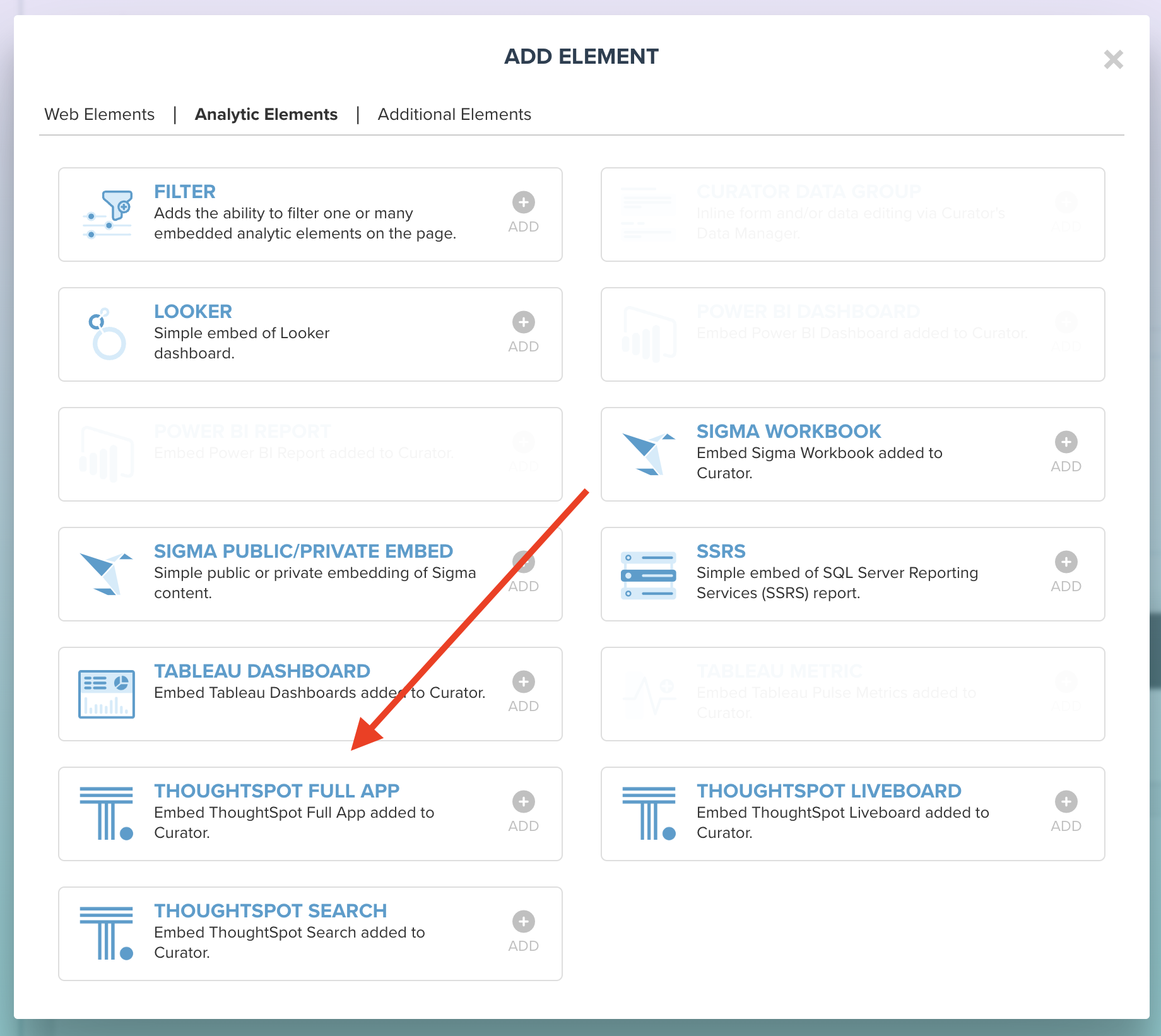
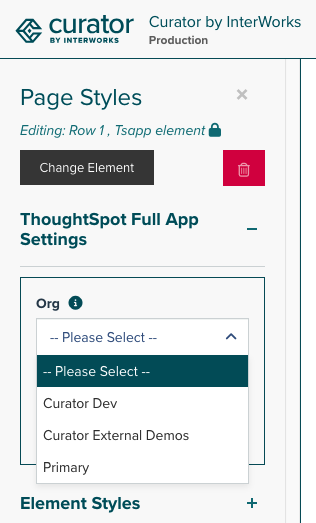
- Once the element is added, choose the Org where your ThoughtSpot data lives from the left-hand panel:
- Finally choose the Homepage experience you’d like to use:
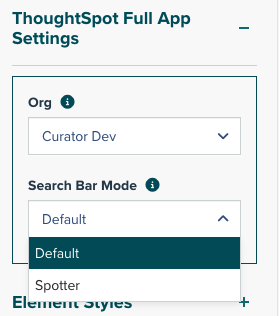
- Classic Homepage (default) - The traditional ThoughtSpot homepage experience
- Spotter Homepage - ThoughtSpot’s new natural language search interface
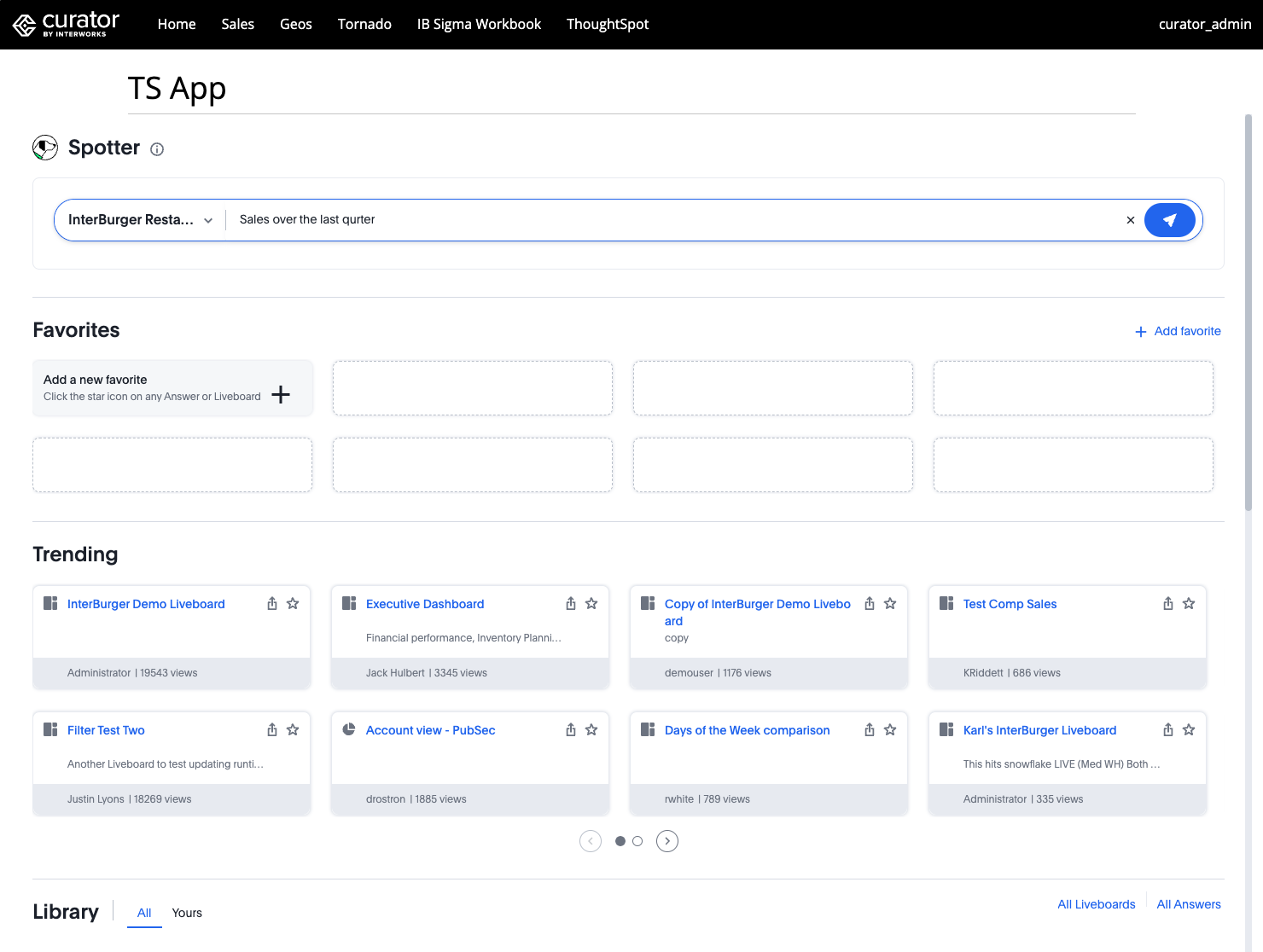
- Classic Homepage (default) - The traditional ThoughtSpot homepage experience
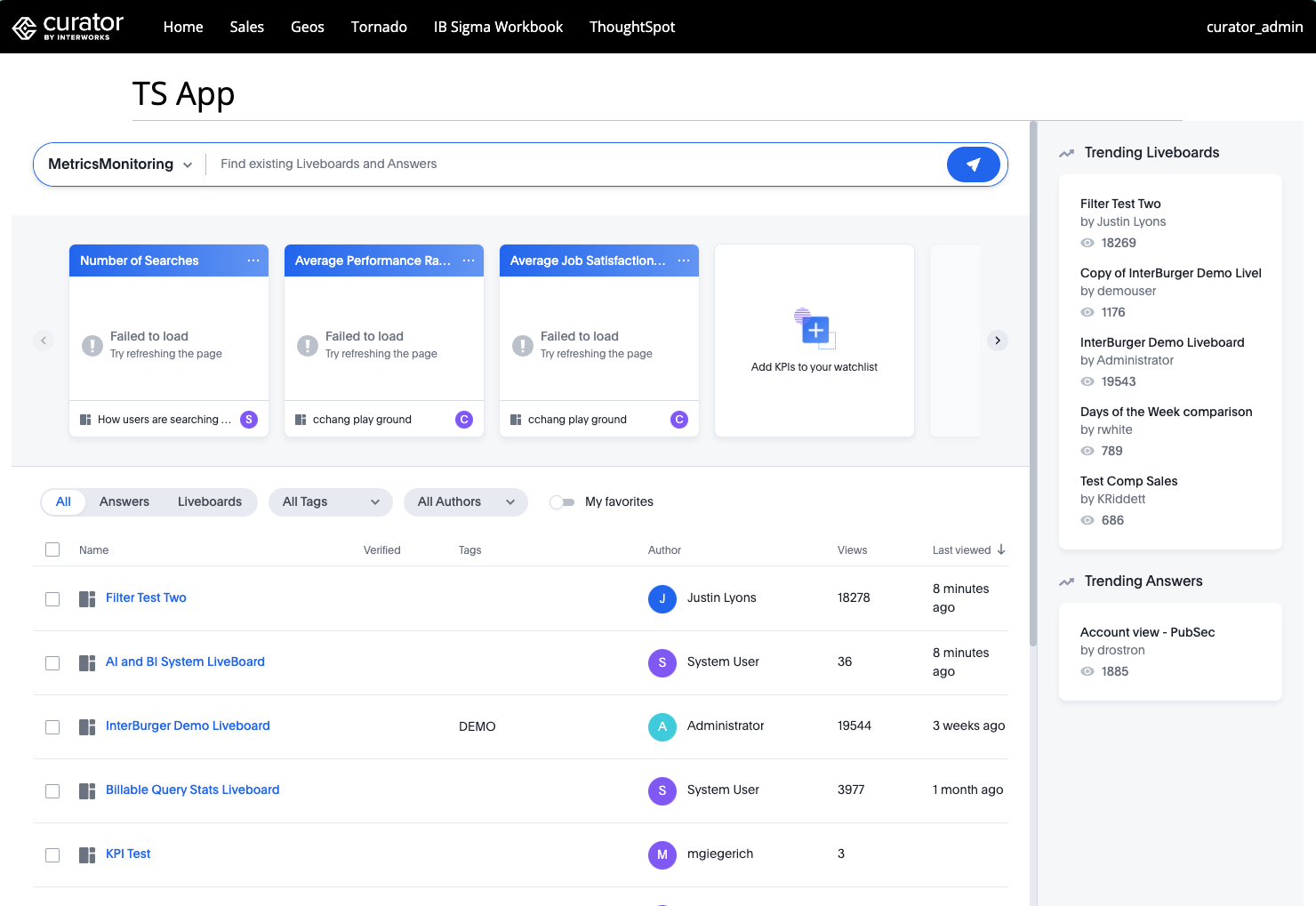
Adding the ThoughtSpot Full App Embed to the Curator Frontend
Once configured in the Page Builder, the ThoughtSpot Full App Embed will be displayed on your page, providing users with access to the complete ThoughtSpot application interface. Users will need appropriate ThoughtSpot permissions on the configured Org to access the embedded application. You can make the page containing the Full App Embed more discoverable by:- Adding it to your navigation.
- Creating a tile that links to the page.
- Adding keywords to the page so it can be easily found via Curator’s search or in the explorer.