

Installation Steps
1
Download the Installer
Log in to the server where you’d like to install Curator and download the Curator installer for Windows.
2
Run the Installer
Locate your download and right-click the file, then select “Run as Administrator” to begin the installation process.

3
Credentials
The installer will generate credentials for use during installation and will store them in a file in the installation
directory (Default:
/var/www/curator_info.txt or C:\InterWorks\Curator\curator_info.txt in Windows). You will need
these credentials to complete the installation and to log in to the Curator backend after installation.4
License Key
Enter your license key when prompted. If you do not have a license key, please contact InterWorks to obtain one.
5
Database Connection
You may be prompted to enter your database connection information if the installer is unable to automatically find the
database for you.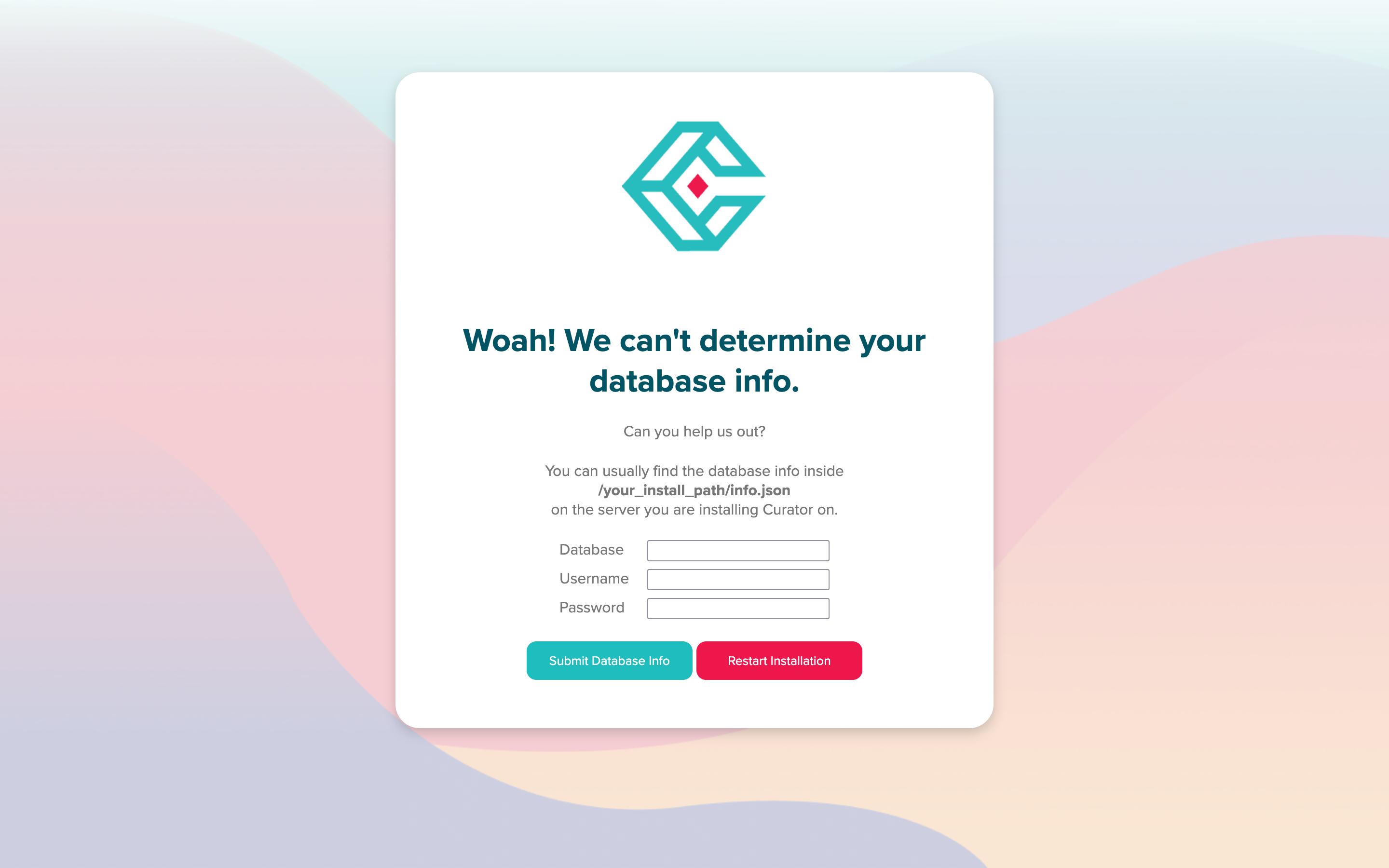
6
Success
If the installation is successful, you will be redirected to your new Curator homepage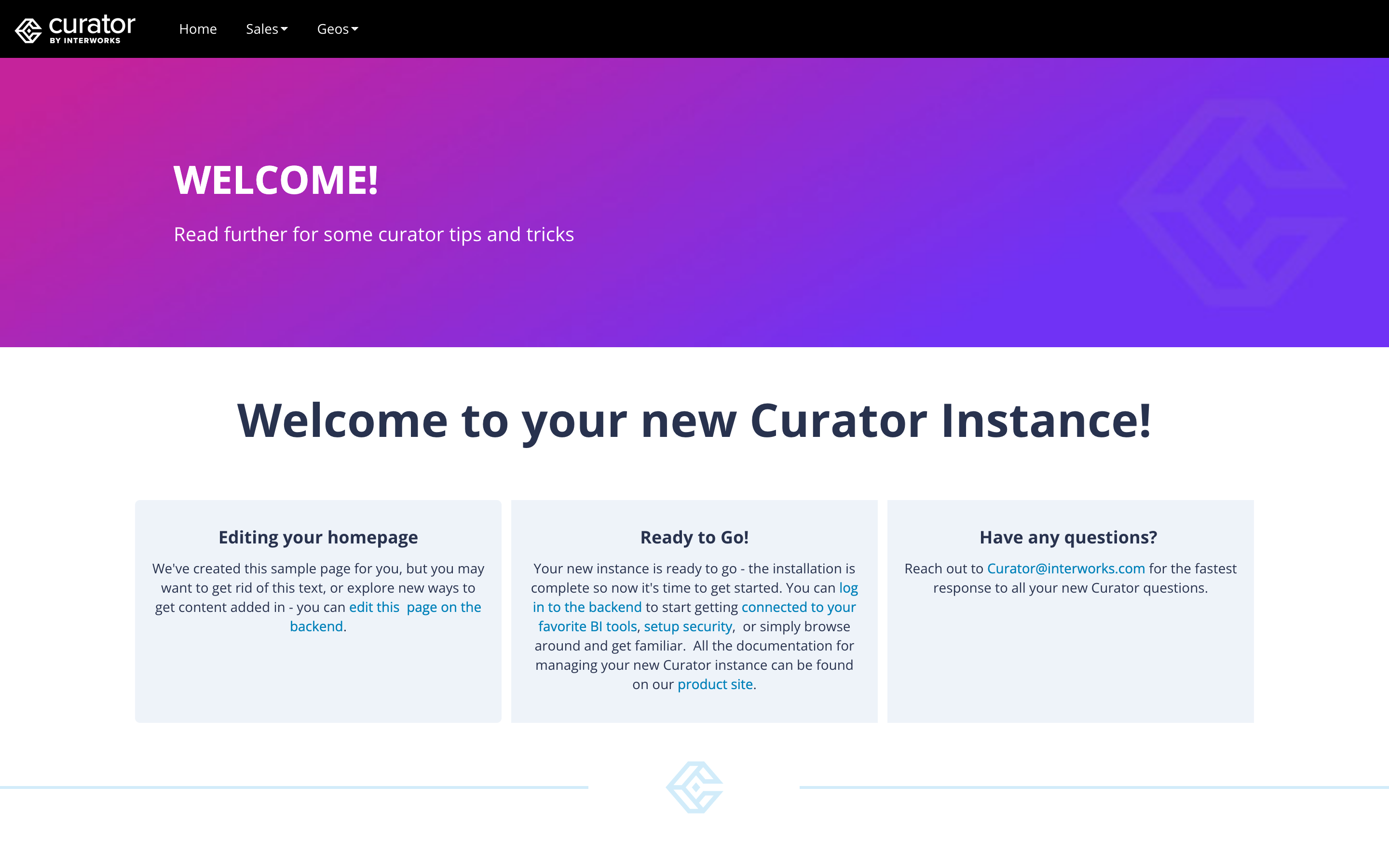
http://curatorexample.com/backend. If you’re on the server you installed, you may also use localhost.
Keep in mind this may be an IP address or computer name until your IT team sets up DNS.Log Locations
These paths are dependant on your installation location, but these are the default paths:- Apache:
C:\InterWorks\Curator\httpd_errors.log - PHP:
C:\InterWorks\Curator\php_errors.log - Installation Log (EXE):
C:\InterWorks\Curator\install.log - Installation Log (PHP Installer):
C:\InterWorks\curator\htdocs\assets\install.log
Network Whitelist Requirements
If you are installing Curator in a restricted network environment, the only external URL that must be reachable from the Curator server is:https://api.curator.interworks.com
- Downloading the installer (
CuratorSetup.exe) - Checking for new versions and downloading upgrade packages
- Validating your Curator license key
Testing Connectivity
To confirmapi.curator.interworks.com is reachable through your firewall or proxy before installing or
upgrading, request the same endpoint Curator itself uses to check for new versions:
StatusCode of 200 with Content similar to:
If the request times out, fails a TLS handshake, or returns anything other than a
200 status, the
whitelist entry is not taking effect yet — recheck your proxy and firewall rules before continuing with
installation or upgrades.Other Information
These paths are dependant on your installation location, but these are the default paths:If Curator was installed on a different drive (e.g.,
D:\), all paths below will reflect that drive
instead. To confirm the exact php.ini path on your system, check the php_ini_path field returned
by the /portal/info endpoint.- Webroot:
C:\InterWorks\Curator\htdocs - Environment file:
C:\InterWorks\Curator\htdocs\.env - HTTPD Config:
C:\InterWorks\Curator\web.conf - PHP.ini:
C:\InterWorks\Curator\php.ini - Start Process:
C:\InterWorks\Curator\start.bat(Also desktop shortcut) - Stop Process:
C:\InterWorks\Curator\stop.bat(Also desktop shortcut) - Apache Location:
C:\InterWorks\Curator\libs\Apache24 - Database Location:
C:\InterWorks\Curator\libs\MariaDB - PHP Location:
C:\InterWorks\Curator\libs\PHP
Environment Configuration
Optional settings can be added to the environment file (C:\InterWorks\Curator\htdocs\.env) to override
Curator’s defaults. Curator ships with sensible values for all of these, so only set them if you need to
change the default behavior. Restart Curator using stop.bat and start.bat after editing the file.
FILESYSTEM_DRIVER and FILESYSTEM_DISK are two separate settings, not old and new names for the same
thing. Curator media and uploads always follow FILESYSTEM_DRIVER. If you have only ever set
FILESYSTEM_DRIVER, your media and uploads continue to work unchanged and no action is required.CACHE_PREFIX is derived from your APP_NAME unless you set it explicitly. Changing either value
changes the cache keys, so Curator rebuilds its cache on the next page load. This is safe, but the first
load afterward may be slower than usual.APP_DEBUG defaults to false, so a generic error page is shown when something goes wrong. Set
APP_DEBUG=true temporarily while troubleshooting an installation to see the detailed error page with a
full stack trace, then set it back to false (or remove it) once you’re done — leaving it enabled can
expose sensitive information about your application and infrastructure to untrusted users.Changing the Install Path
This is not recommended but may be necessary in rare circumstances. The installer will default toC:\InterWorks\Curator if no changes are made to the install path. If you must change the install path, click the
“Options” button in the installer window


Installing a Specific Version
The Windows installer always installs the latest version of Curator. Unlike the Linux installer, which supports a-v flag to specify a
particular version, the Windows installer does not offer a version selection option.
If you need to install a specific older version of Curator on Windows, please contact
InterWorks support for assistance.