Tableau Setup
Before you can set up Okta SAML authentication for Curator, you need to ensure that your Tableau Server or Tableau Cloud is configured to work with Okta. This involves setting up SAML authentication on Tableau, which is a prerequisite for integrating with Okta. You can either refer to the Tableau Cloud guide to setting up Okta or the Okta guide to configure SAML for Tableau Server.Creating an Okta Application
In order to link Curator to your Okta instance, you must first create a new Application on Okta. If you already have an Okta application set up for Tableau (Server or Cloud), you will not be able to re-use that application for Curator and will need to create an application dedicated to Curator integration. Refer to the Okta document on creating a new SAML 2.0 integration.Curator Details to use for your Curator Okta app
You will need to use some Curator-specific details when setting up the Okta application. Below are the details you would use for a new Curator site installed at the urlhttps://mycuratorsite.com:
- Single sign-on URL:
https://mycuratorsite.com. This is the URL that users will be redirected to after logging in. Use the URL to the homepage of Curator. - Audience URI (SP Entity ID):
curator-site.comThis is the identifier for the service provider (Curator) in the SAML authentication process. - Application username format:
Email(typically). If your users do not use email to login to Okta applications, then select the format that matches Tableau Okta app’s usernames. - Application username format:
user.email(typically). If your users do not use email to login to Okta applications, then select the user-attribute that matches the Tableau Okta app’s usernames.
Curator Setup
Once you’ve created the Okta application, you can proceed to configure Curator to use SAML authentication with Okta.Export Authentication Metadata from Okta
Follow the Okta guide to downloading your SAML metadata. Ultimately, this will provide you with a.xml file that contains the necessary metadata for
integrating Okta with Curator.
Add Okta metadata to Curator
Importing Okta Metadata
Select the SAML tile. Curator shows a three step guide: Register Curator with your IdP, Import your IdP’s details, and Test and turn on. In step 2, drop the XML file you downloaded from Okta onto the upload area (or paste its metadata URL). Curator shows the values it found; click Apply these settings to save them.Manually Entering Okta Metadata
Alternatively, expand SAML connection details below the guide and enter the information by hand:- Curator Entity ID (Issuer): Enter the “Audience URI (SP Entity ID)” you filled in before.
- Sign-in URL (SSO): Enter the “Identity Provider Single Sign-On URL” URL found in the setup section.
- IdP Entity ID: Enter the “Identity Provider Issuer” from the setup section.
- Logout URL (SLO): Enter the URL of the application
/login/signout(i.e. https://mydomain.okta.com/login/signout) - IdP signing certificate: Open the “Request signing and certificates” section, copy the certificate text from Okta, and paste it in the field.
Testing the sign-in
In step 3, click Test sign-in with Okta. Curator opens Okta in a new window, signs you in, and lists the attributes Okta returned without changing anything for other users. Pick the attribute that matches your Tableau usernames, then save the page with SAML selected to turn it on.Enabling iFrames for Tableau’s Okta App
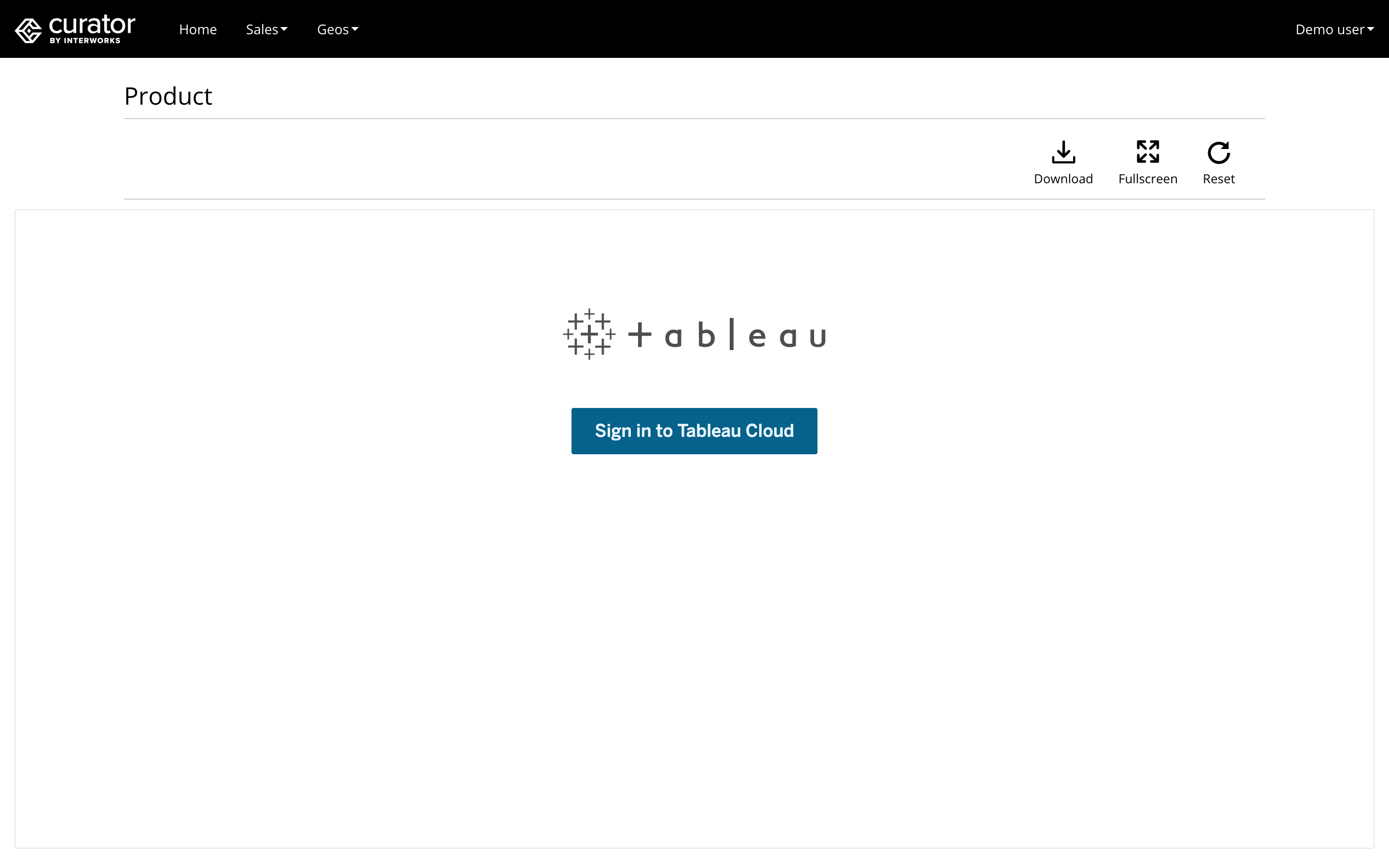
You may encounter issues with seamlessly embedding Tableau content in Curator if the Okta application is not set up to allow iFrame embedding - if you see an image like the one below when trying to access Tableau content in Curator, then you will need to refer to Tableau’s guide on enabling iFrame embedding for Okta to complete your Okta integration.